
In the Selected Features panel, tabs separate the results into four lists – parcels, plans, survey controls and crown features.
Navigating the Selected Features Panel
The Selected Features panel can be opened and minimized at any time by clicking on the Selected Features icon located on the bottom left corner of the map.
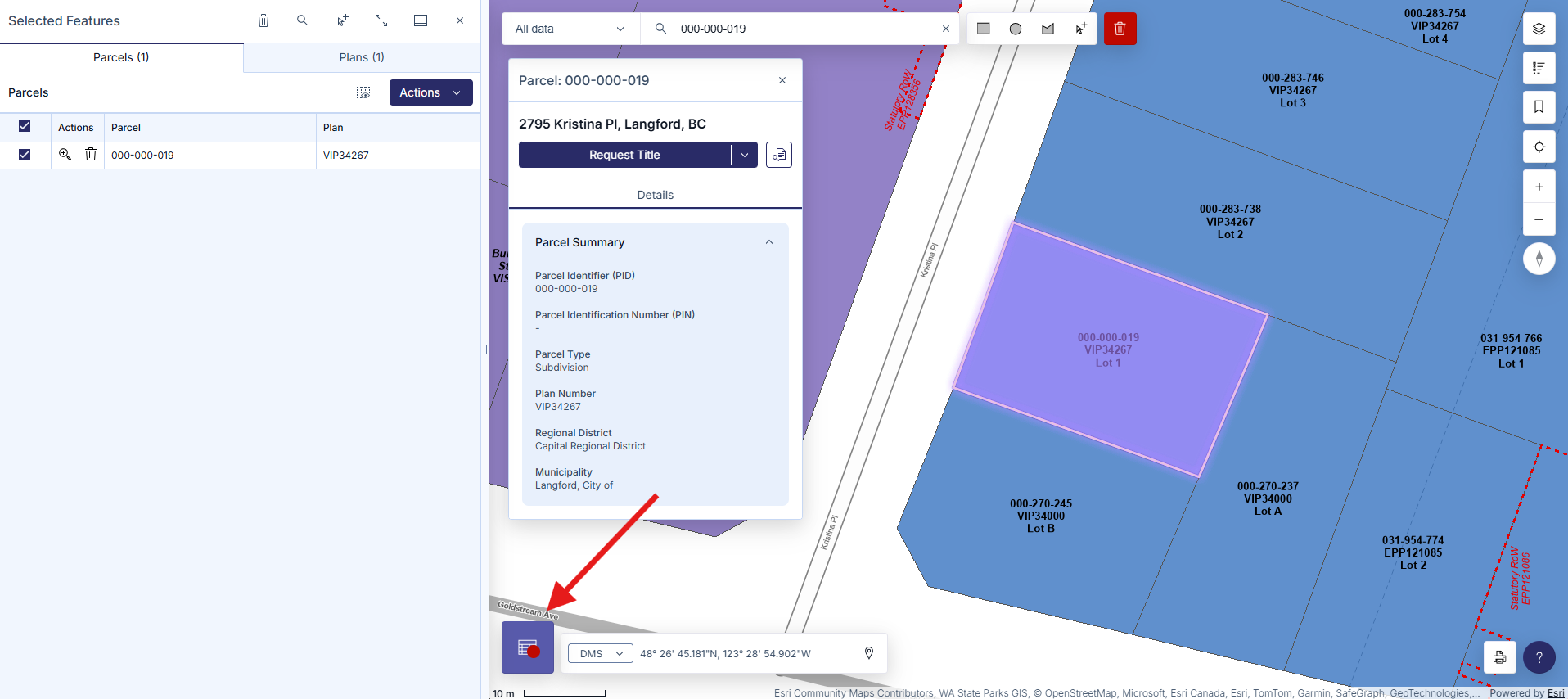
Each tab allows you to view details, search titles, order plans, zoom to parcels, clear table, and navigate to related services for more information. A counter will indicate the number of results listed.
The results in the Parcels and Plans tabs are connected. For example, removing a plan in the Plans tab will remove all related parcels in the Parcels tab.
Selected entries can be removed through the following options:
- The Clear Table icon located on the top of the Selected Features panel
- Clicking on Remove on the bottom of the Selected Features panel, next to Zoom to
- Clearing the entire map by clicking on the Clear Map icon located next to the Shape icons
Parcels Tab
When parcels are selected on the map, the Parcels tab will list parcel names and related plan numbers.
Additional data for parcels can be added to the table using the Show/hide columns icon.

Data fields that can be added to the table are:
- Parcel
- PID
- PIN (Parcel Identification Number)
- Parcel Type
- Plan
- Regional District
- Municipality
Depending on if you are an Explorer or Enterprise user, or registered as a Land Surveyor, the additional options will be available:
- Legal Description
- Jurisdiction and Roll Number
- Parcel Status
- Parcel Start Date
- Parcel End Date
- Historical
- Owner Type
- Geometry Source
- Parcel Area
- Capture Method
- Accuracy Category
Accounts can order all Titles available or order Parcel Info & Misc Notes by clicking on Actions next to the Show/hide columns icon and then selecting Titles under the Request... header from the drop-down menu:
- Titles: Will open the Title Search page, this will open in a new tab with all parcel identifiers populated. See Title Search by Parcel Identifier for more information
- Parcel Info & Misc Notes: Will display all notes for each title, click Print Results to print all of the listed Parcel Notes. If using a Enterprise account, you will also have the option to Send Results to send all Parcel Notes to your LTSA Inbox.
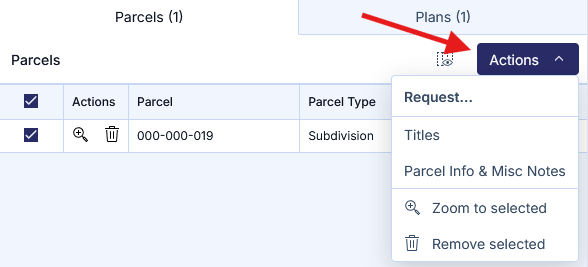
Clicking Request will begin the Explorer or Enterprise order process. A maximum of 20 orders can be done at one time.
Clicking on a selected parcel in the table will show the Parcel Feature Details panel. This panel shows two tabs, one that will show Details and another for Parcel Info & Misc Notes. As well, you will have two options to:
- Request Title/Plan: Allows Customer Portal users to request the desired title and/or plan image
- Search BC Assessment: Clicking the Search BC Assessment icon next to Request Title will open BC Assessment's Assessment Search in a new tab
When viewing a title's Parcel Feature Details panel, clicking on the Chevron next to Request Title will show additional options. These options are the same options available when you view a plan through the Plans Tab.
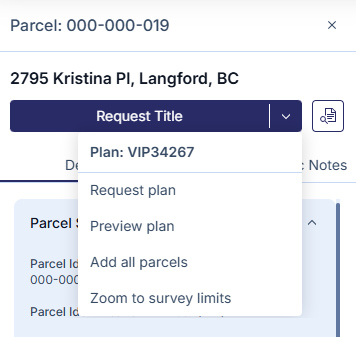
The information available varies If you are using the Public viewer or an Explorer account.
Plans Tab
When parcels are selected on the map, the Plans tab will list plan numbers and plan types.
Clicking on a selected entry in the table will show options in a second panel to:
- Request Plan: Opens the Order Documents and Plans page in a new tab with the plan number populated. See Document and Plan Requests for more information.
- Preview Plan: A plan preview will show up in a new tab
- Add All Parcels: Adds all parcels for an associated plan to the Parcels tab
- Zoom to survey limits: Displays the survey limits for a plan. This is only available for plans submitted with survey plan datasets.
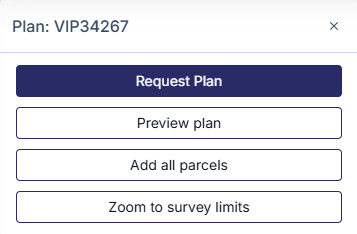
If you are using the Public viewer or an Explorer account some features may be missing.
Crown Features Tab
When crown features are selected on the map, the Crown Features tab will list crown features.
Clicking on a selected entry in the table will show options in a second panel to:
- View Details: The second panel will show a Crown Feature summary
- Search Crown Land Registry: Opens the Crown land registry in a new tab
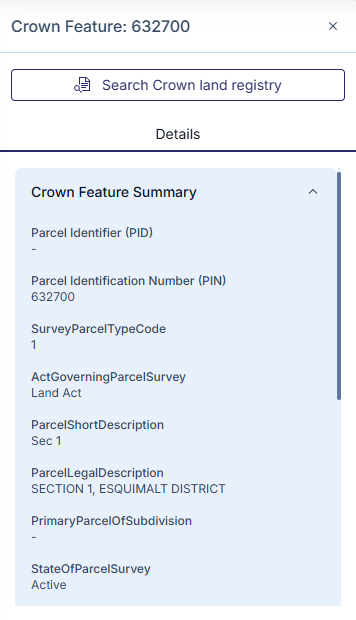
Crown Features are selectable by toggling on the Crown Features layer in the Map Layers tool. See Adjust Map Layers & Basemaps.
Survey Controls Tab
When survey controls are selected on the map, the Survey Controls tab will list survey controls.
Clicking on a selected entry in the table will show options in a second panel to:
- View Details: The second panel will show a Survey Controls Summary
- Search Geonet BC: Opens Geonet BC in a new tab
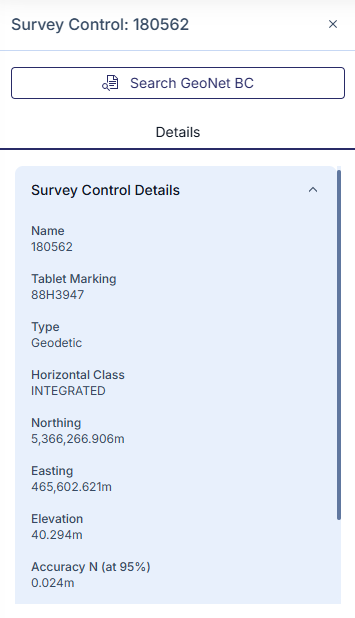
Survey Controls are selectable by toggling on the Survey Control child layer under the Survey Features parent layer in the Map Layers tool. See Adjust Map Layers & Basemaps.
Full Screen View
To maximize your view of the Selected Features table, maximize the Selected Features pane by clicking on Expand table on the top right of the Selected Features tool. You can also press Dock to bottom panel to move the Selected Features pane to the bottom of the map.

To change the width of the Selected Features table, you can press and drag on the right edge of the Selected Features tool, indicated by a double-headed arrow, to your desired width.
If the Selected Features tool is on the bottom of the map, you can press and drag on the top edge of the tool to change the height of the table to your desired height.