
You may search parcels in ParcelMap BC Search for Land Surveyors by text input, through defining an area of interest by shape or by clicking on the map.
The Help (?) icon on the bottom-right of the map can be accessed at any time to open a guide that provides a visual guide for controls, provide definitions for commonly used buttons, and links to help guides relating to Parcelmap BC Search.
Search Parcels by Map
The following mouse inputs are available:
| Input | Function |
| Left Mouse Click | Selects a parcel on the map |
| SHIFT + Left Mouse Click | Each individual feature selected with this input will add the feature to the Search Results |
| CTRL + Left Mouse Click | Each individual feature selected with this input will remove the feature from your existing Search Results |
| SHIFT + CTRL + Left Mouse Click | Each individual feature in your existing Search Results selected with this input will keep it in your selection of Search Results but not highlight it for options such as ordering titles. |
You can also use the dedicated option for adding subsequent searches in the selected features panel.
- Click on Add to selection, located on the top of the Selected Features panel.
- Afterwards, use your desired search methods to enter additional values.
- Clicking on Add to selection a second time will allow you to perform individual searches, clearing any prior existing search results in the table.
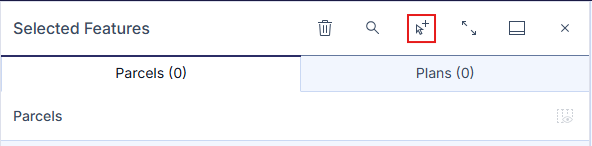
You can select parcels from the Active Parcels, Fabric History and Crown Features layer. To search parcels from a specific layer, the layer must be visible on the map. See Adjust Map Layers.
Search Parcels by Text Input
From any page of the LTSA's Electronic Services, rollover ParcelMap BC in the navigation bar at the top of the page and click ParcelMap BC Search (New)
In the Search Bar field on the top left of the map, enter the required information.
Available methods to search for Parcels and related information are:
- Parcel Identifier (PID): Can be entered with dashes (nnn-nnn-nnn) (eg. 000-000-019) or without. Leading zeros are also optional. This offers the most precise parcel search.
- Civic Address: The expected format is Civic Number, Street Name, Locality Name, Province (e.g. 501 Belleville St, Victoria BC). The field will suggest matches as you type in an address. Select the desired address from the list. This is recommended when a Parcel Identifier is not known.
- Parcel Identification Number (PIN): This is separate from a PID, where a PIN is the generated number used by Crown Lands, registry, and GATOR to identify a parcel. A PIN is a sequence of numbers that are often but not limited to seven digits long.
- Plan Number: Include any relevant prefix or suffix (e.g., VAS12345.) This will find the parcels tied to the registered plan.
- Jurisdiction and Roll Number: Can contain dashes, spaces or periods, all of which are optional when searching
Aside from partial values, % can be input as a wildcard when searching Addresses and Plan Numbers (e.g VAS12%4 will show VAS1204, VAS1214, VAS1224, etc.) Results will be limited to keep searches relevant.
Advanced Search
Advanced Search options provide additional ways to find parcels and features using legal and survey-based information.
The following advanced options are available:
Search by Legal Description
Searching with Parcel by Legal Description is best used when the information you are working with is from a legal document, and that you know details such as the district, lot, block, or plan.
Use the Short legal wizard tool to input individual values in each field:
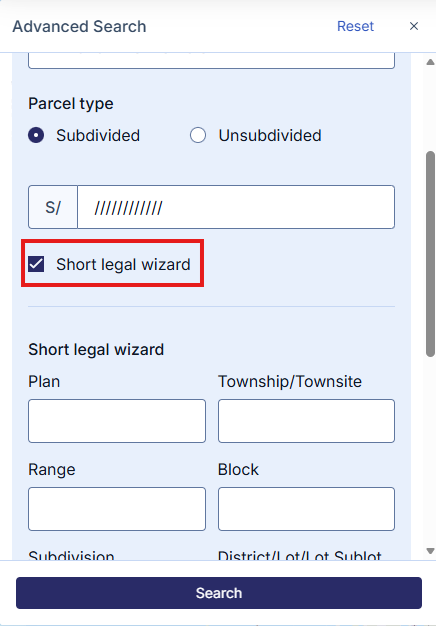
You can enter the short legal description directly into the Short Legal Description field. Ensure entering the fields in the correct order and that you insert the correct number of slashes to find an accurate result.
For more information, see Entering Short Legal Descriptions
Searching with Parcel by Legal Description is best used when the information you are working with is from a legal document, and that you know details such as the district, lot, block, or plan.
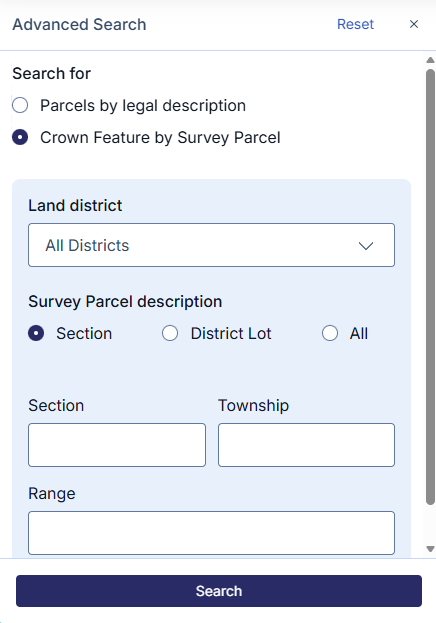
Crown Feature by Survey Parcel
This is best used when locating Crown parcels using survey grid references.
The following search details are used:
- Section/Township/Range
- District Lot
- All: A freeform search that will accept partial and % freeform inputs (e.g 223% will show 2231, 2232, 2233, etc.) Results will be limited and contained to legal descriptions to keep searches relevant.
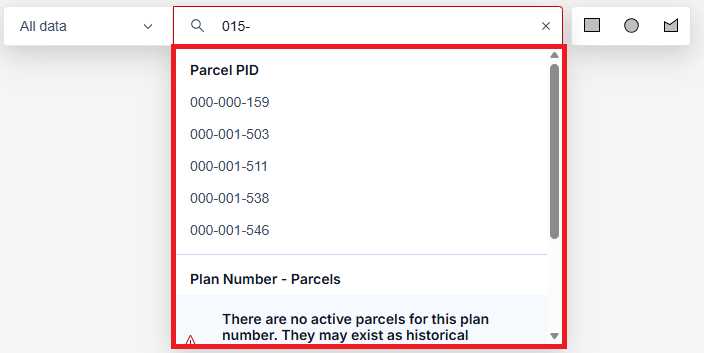
The Search Bar will automatically provide results as you enter your information in the field. You can enter an exact match or a partial match to produce a list of results. Click on your desired result from the results found.
If the parcel is located, the map will zoom and pan to it and results will be displayed on the Selected Features pane on the left hand side. From the Selected features panel, you can view parcels, plans, survey controls, and crown feature in individual tabs; from these tabs you can search titles, order plans, zoom to parcels, clear results and navigate to external services for related information. See View Search Results.
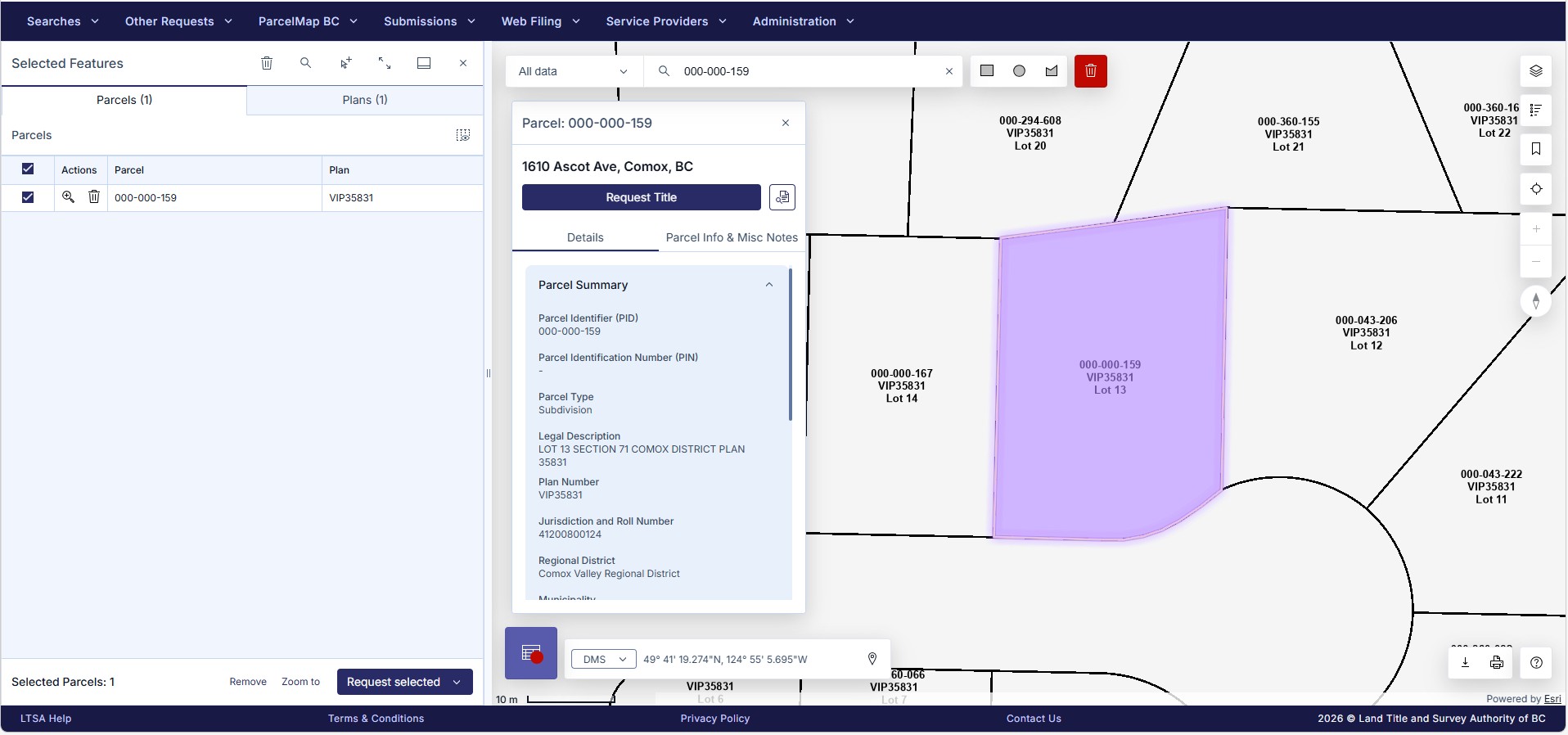
Orange parcels are historical. Click Include Fabric History to show historical parcel representations in your search. Fabric History layer must be checked in Adjust Map Layers and Basemaps for these results to display.
Search by Shape
You can search parcels in the parcel fabric by defining a shape based on an area of interest.
Choose a shape type to draw by clicking a shape icon on the top right of the map.

Draw a shape on the map with your selected shape option to select the desired parcels as follows:
- Rectangle or Circle: To draw, press down and hold the left mouse button, drag the desired area and let go to finish and highlight parcels on the map
- Polygon: To draw, click the left mouse button at the desired start point, move to the next area of the map and left click to complete the first side of the shape, repeating to define the desired area, using a double click to finish the shape and highlight parcels on the map
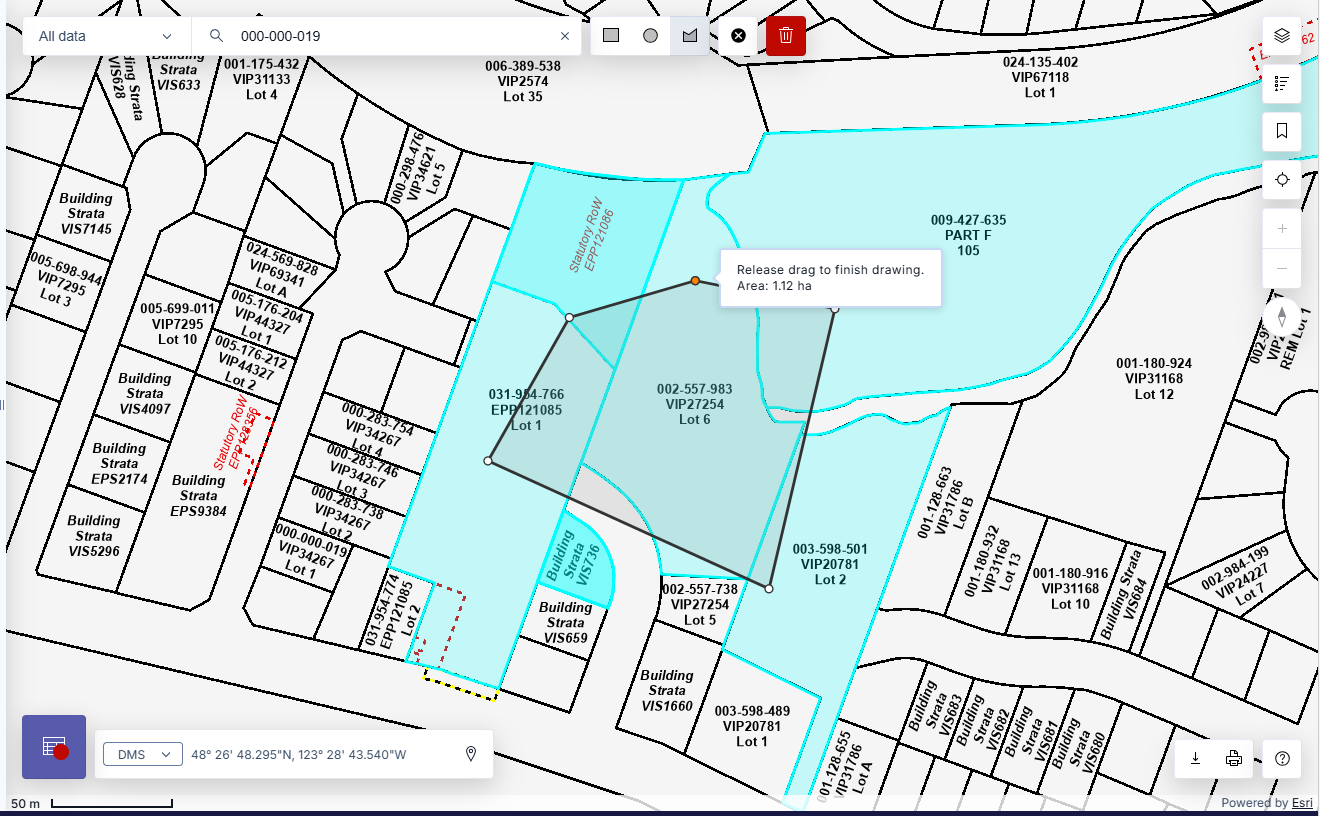
The results will be displayed on the Selected Features panel on the left hand side. From the Selected Features panel, you can view parcel, survey control, and crown feature details, search titles, order plans, zoom to parcels, clear results and navigate to related services for related information. To learn about the Selected Features panel, See Manage Search Results.