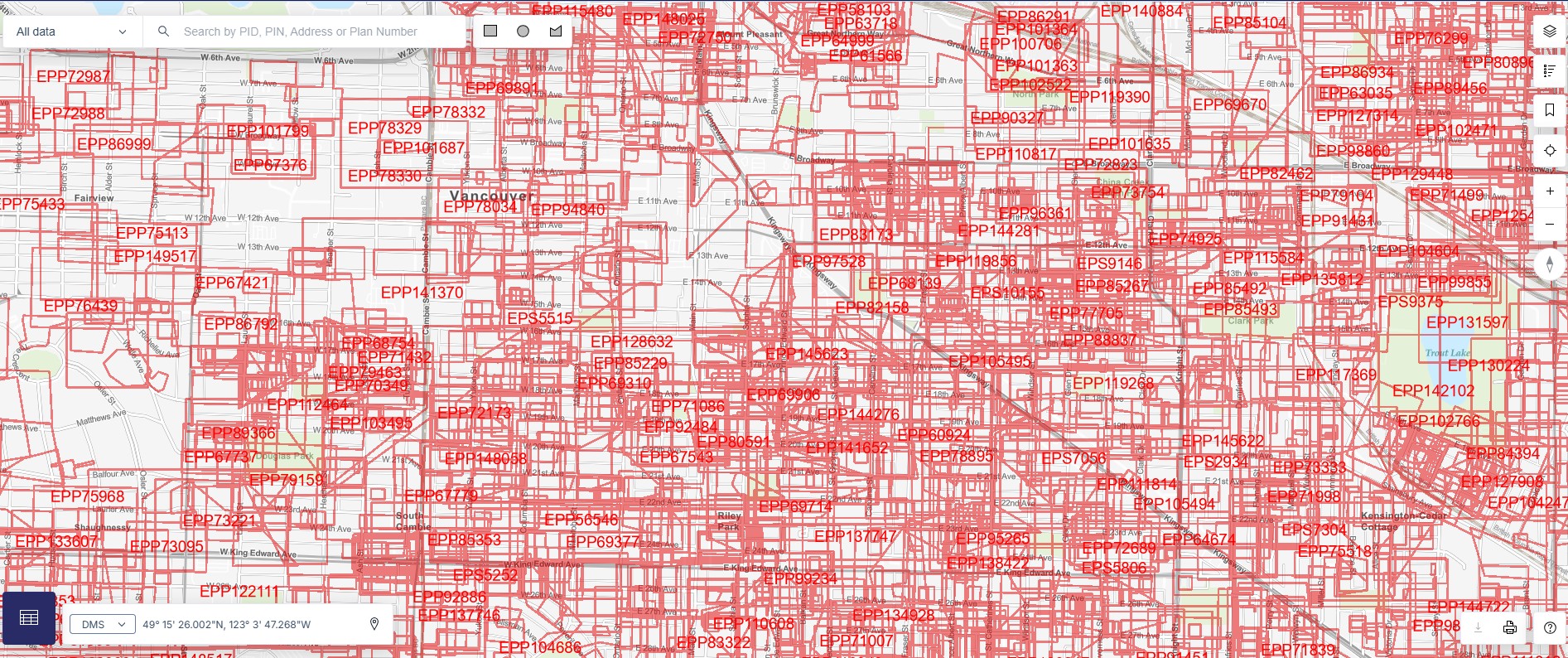
The Survey Limits layer in ParcelMap BC shows the extent of a survey submitted by a land surveyor. When this layer is visible, areas with high survey activity can clutter the screen. The following guidelines help filter the data presented on the map when the Survey Limit map layer is enabled to limit the amount of data shown at one time.
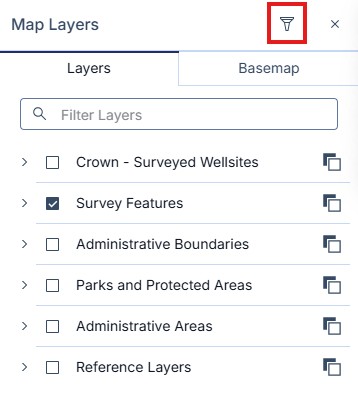
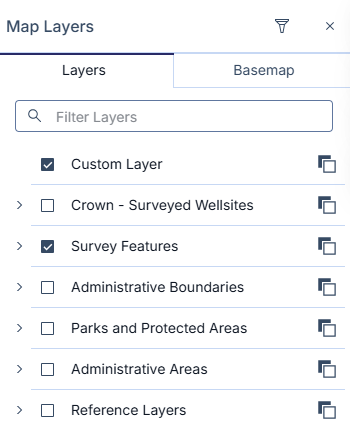
Click the Query Layers icon on the Map Layers menu.
Click Create New to go to the Create Query Layer tool.
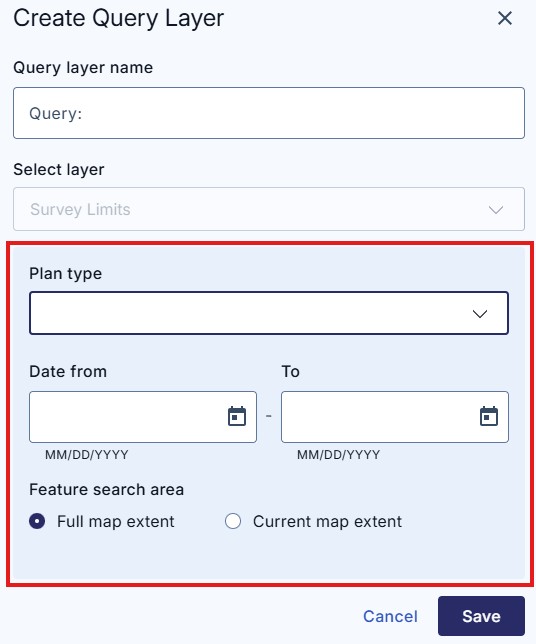
Enter in a name for your print in the Query Layer name field.
Using the 'Select Layer' field option will allow you to choose which layer you want to query or filter.
Currently, only the Survey Limits filter is available.
This tool brings up two ways to filter the data to a reduced set.
- To filter by plan type, select the plan type from the drop-down menu.
- To filter by date, select from the calendar a start and end date to limit the data shown to that period. The default is set to show all data available. You can use the calendar widget by clicking on the down arrow or can simply input in the date directly.
Filters can be combined to use both Plan Type and Dates at the same time to further refine what is shown.
This set will be saved as a new layer, which can be toggled on and off alongside other layers.
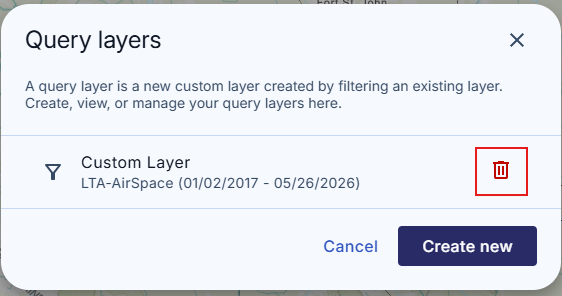
You can delete any saved layers by clicking on the Query Layers tool icon at any time and then clicking the red icon next to the layer you want to delete. You can click on any saved layers in the Query Layers menu to edit your filters.