
There are several ways to navigate the ParcelMap BC map. You may use the available map and navigation tools in order to find a specific location or select parcels.
To select parcels on the map, see Search Parcels.
UTM Coordinate and Latitude/Longitude
UTM Coordinates and Latitudes/Longitudes can be entered in the Search Bar to zoom and pan to the corresponding location.
Select either UTM Coordinates or Latitude/Longitude by clicking All Data to the left of the Search Bar to access all search options.
In the Search Bar field, Enter the UTM Coordinate or Latitude/Longitude.
Click on the selected result from the automatically generated list of results. The map will zoom/pan to the location specified and drop a location pin.
If you wish to view information about a particular parcel, you must select it. Locating using a UTM Coordinate or by Latitude/Longitude will not select a parcel.
- UTM Coordinate: The expected format is Northing Easting UTM Zone (e.g., 5363760.00 473235.00 10N)
- Latitude/Longitude: The expected format is Latitude Longitude in degrees, minutes, seconds (DMS) (eg. 48 25 35.0 N 123 21 42.0 W)
Capturing Coordinates
You can capture a UTM Coordinate or a Latitude/Longitude by clicking on the Capture Mode icon on the coordinates field on the bottom left corner to convert map clicks into coordinate values that can be copied for your own use.
You can capture
- DMS
- BC Albers
- Decimal Degrees
- UTM
- Latitude/Longitude
With the drop-down menu by the left side of the coordinates field.
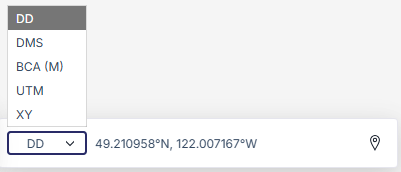
Once a location is dropped, clicking on the Copy icon next to the Capture Mode icon will save the coordinates to your clipboard.
To clear a pin or highlight, click the trash can icon. To view the details for a locate pin, click the pin.
Zooming, Panning, and Rotating
- Click and pan the map to move around, or use the arrow keys on your Keyboard to pan the map.
- Zoom the map display by clicking the in (+) and out (-) buttons, or the (+) and (-) buttons on your Keyboard.
- Scroll the mouse wheel/trackpad to zoom in and out of the map
- Zoom the map to its full extent and show the entire province by clicking the home button
- Zoom to your location on the map by clicking the Find My Location button
- To zoom to any area of interest on the map, press and hold the SHIFT key and the left mouse button, drag the shape over the desired area and let go the mouse button to define the zoom extent
You can also rotate the map using the following controls:
- Press N on your Keyboard to Reset map to North
- Right click and drag the map to Change map orientation
- Press A and D on your Keyboard to Rotate the map left and Rotate the map Right.
Bookmarks
You can save your current map extent and view using the Bookmarks icon

By default, the following bookmarks are provided:
- British Columbia
- Lower Mainland
- Vancouver Island (North)
- Vancouver Island (South)
- Okanagan
- Northern BC
By selecting British Columbia, the map will zoom out to show a wide view of British Columbia.
- Click Add bookmark at the bottom of the Bookmarks tool and enter a name for your bookmark.
- Click Add to add your new bookmark.
- Click Edit on the right side of your bookmark entry to enter a new title or to Delete the bookmark.
Bookmarks are stored in your current browser's cookies on your current device. Clearing browser cookies or cache may remove any saved bookmarks.
Full Screen View