You can adjust the basemaps and map layers to view the map based on your preference.
Follow the steps below to control the visibility of these reference items in ParcelMap BC.
Select Basemaps
The Select Basemap tool allows you to select one of four ways to view the map.
Click the Map Appearance icon on the top right of the map to open the Map Layers tool, and then click on the Basemap tab.
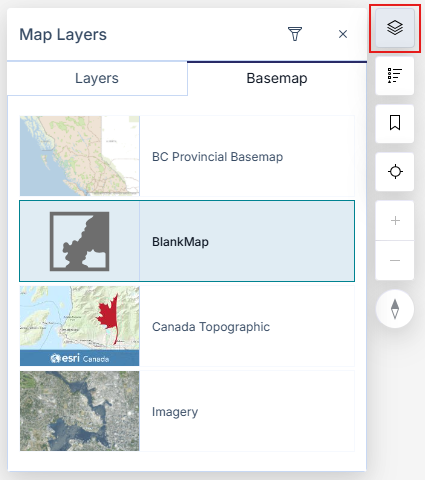
You may select the following basemap views:
- BC Provincial Basemap: shows a simplified map with roads and highways shows a simplified topographic map
- No Basemap: shows a blank basemap
- Canada Topographic: shows a simplified topographic map (set as default)
- Imagery: shows satellite and aerial imagery
The map will reflect a new basemap based on your selection
You may need to zoom in or zoom out for the basemap to be visible.
Adjust Map Layers
The Adjust Map Layers tool allows you to control the visibility of the layers that make up the ParcelMap BC map. You may select the following layers to appear on the map:
- Active Parcels
- Interest Parcels
- Parcel Boundaries
- Parcels By Class
- Parcels By Owner Type
- Fabric History
- Interest Parcels
- Parcel Boundaries
- Parcels By Class
- Parcels By Owner Type
- Crown Features
- Surveyed Parcels
- Statutory Right of Ways
- Transportation Parcels
- Administrative Boundaries contains
- Municipalities
- Indian Reserves
- Federal Real Property
- Treaty First Nations Lands
- Regional Districts
- Agricultural Land Reserves (ALR)
- Parks and Protected Areas contains
- Provincial Parks and Protected Areas
- Protected Conservancy Areas
- National Parks
- Administrative Areas
- Assessment Areas
- Land Districts
- Land Title Districts
- Integrated Survey Areas (ISA)
- Reference Layers
- UTM Zones of BC
- Mapsheet Grids
- NTS 1:250,000 Grid
- Petroleum and Natural Gas Grid
- Map Sheet
The following Map Layers are available for registered Land Surveyors:
- Crown-Surveyed Wellsites
- TANTALIS - Surveyed Wellsites
- Survey Features
- Survey Control
- Survey Limits
- Integrated Survey Areas
Some map layers will only be available when you have zoomed into the map far enough for affected parcels to be visible. These layers will be greyed out when they are unavailable to be selected until reaching the correct zoom level.
To search for a specific Map Layer, input the Map Layer you are looking for in the search field at the top of the Map Layer tool.
To adjust the map layers:
Click the Map Appearance icon on the top right of the map to open the Map Layers tool, and then click on the Layers tab.
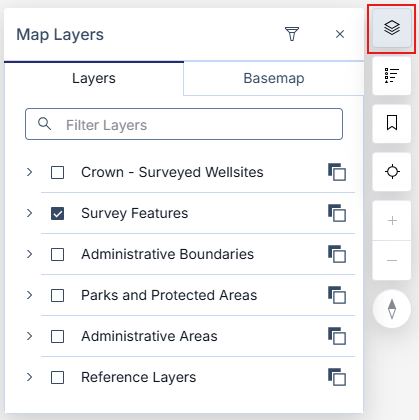
Click a checkbox next to the Operational Layers you wish to have shown on the map
Click the (>) icon on the left of a parent layer name to show all associated layers
Click the Change Layer Opacity icon on the right of a parent layer and then drag the slider left or right to adjust the transparency
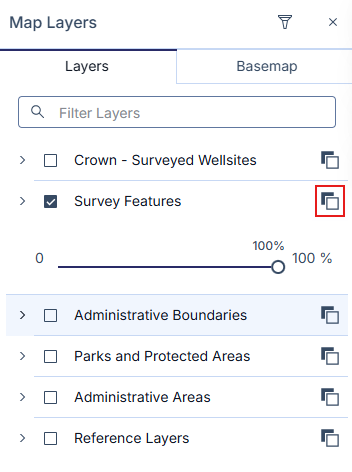
The map will reflect the new layer(s) based on your selection
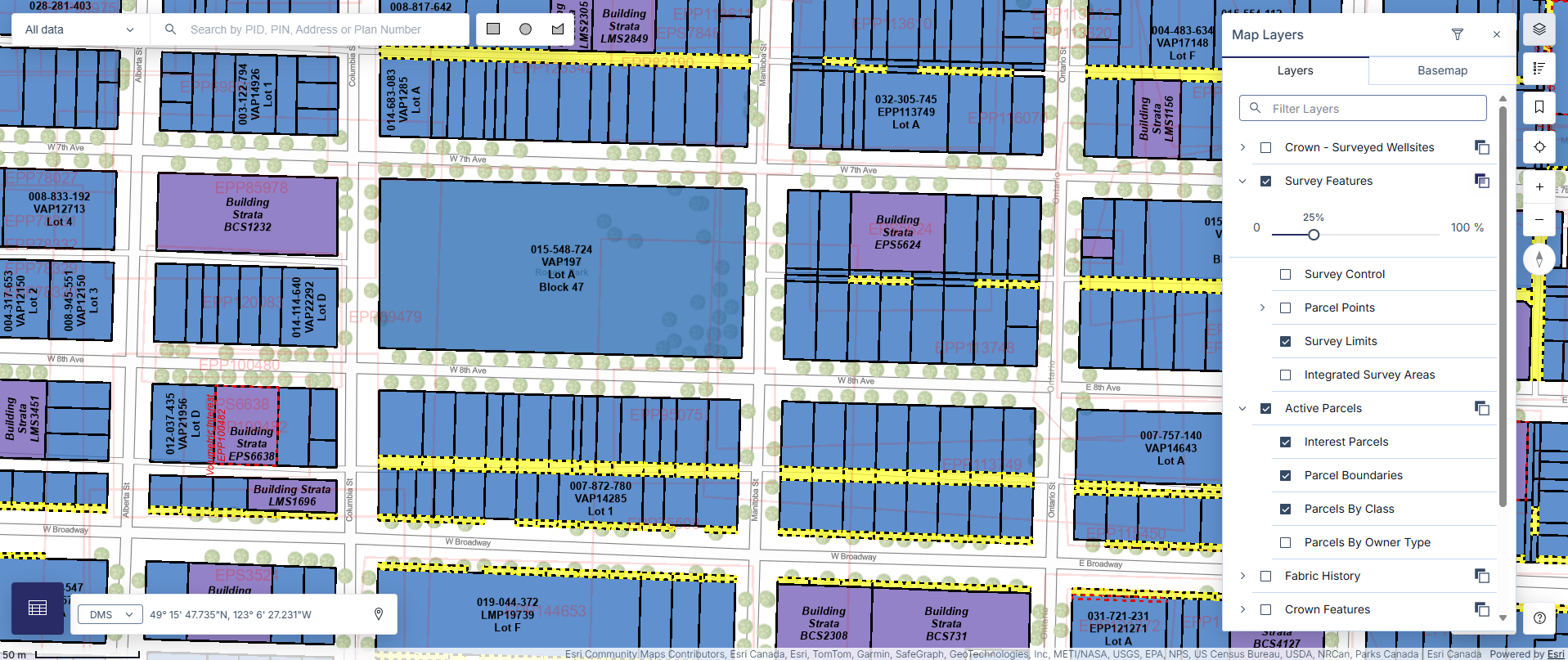
If a map layer is turned off, you will not be able to see nor select the affected parcels.
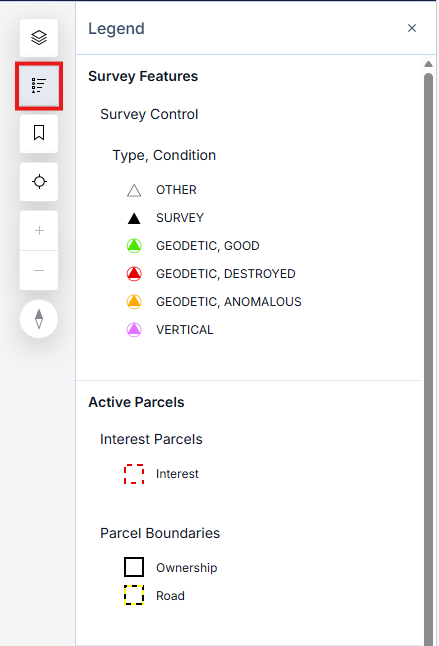
A visual legend is accessible at any time by pressing the Legend icon located on the top right of the map.
This will show the legend for all visible layers selected and drawn on the map and will automatically update when you add or remove layers of your choice.