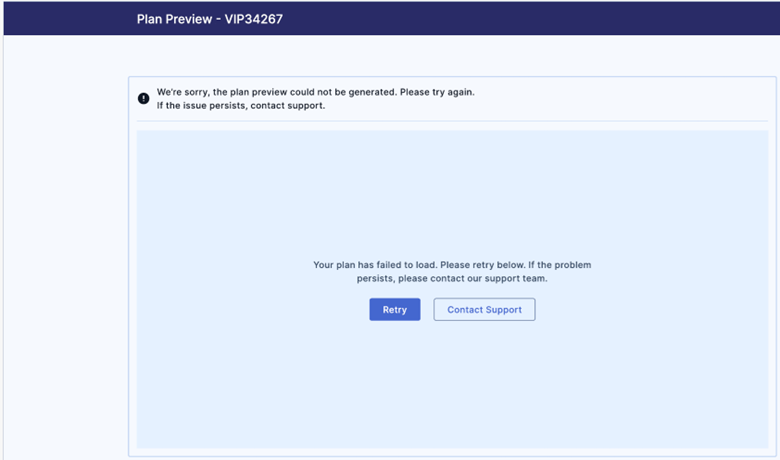
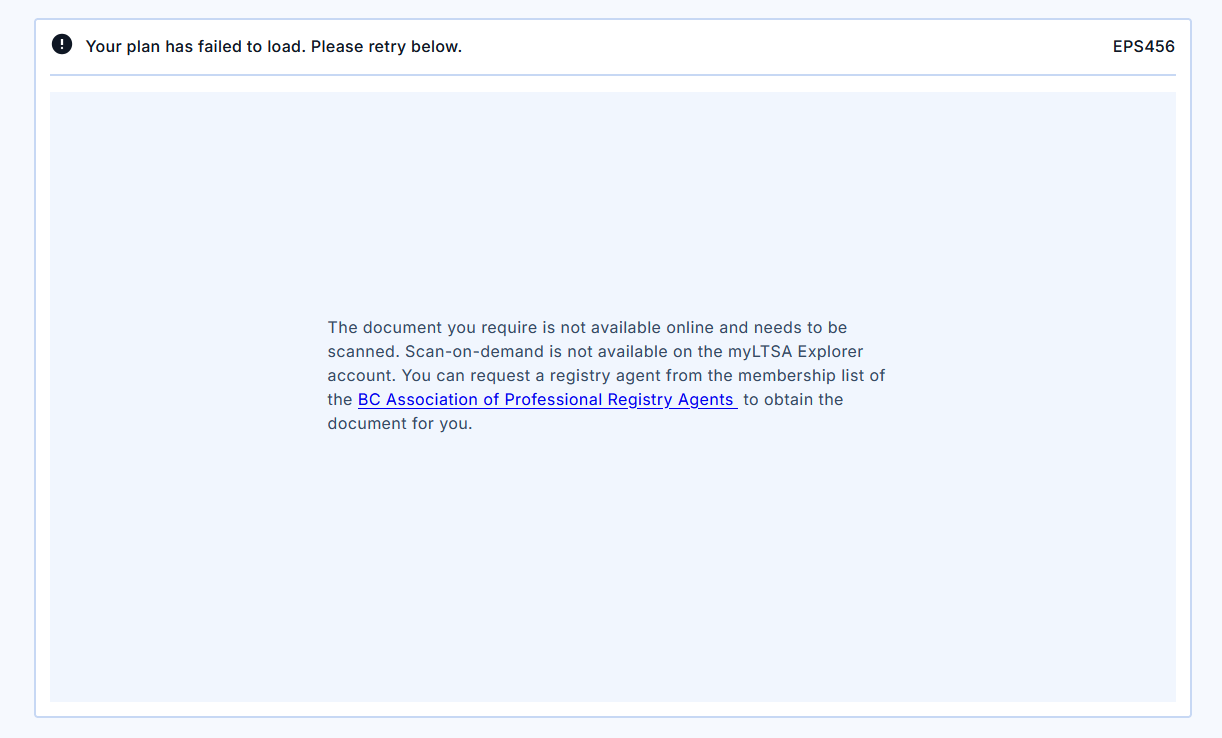
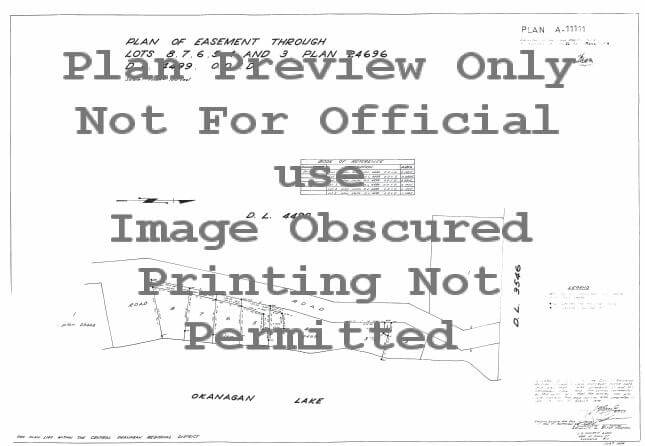
Plans available in the electronic database can be previewed to help users verify the correct plan for purchase.
Preview a plan using the Plan Search
Where an image of the plan is available, the plan number will be underlined in the Plan Number column on the Plan Search Results page.
Plans that have not been imaged will need to be obtained from the land title office and cannot be previewed.
To preview a plan:
- From the Searches menu select Plan Search to enter the numeric portion of the plan number and press the Search button
- Click the desired Plan Number link in the Plan Number column on the Plan Search Results page
- The plan preview will open in a new browser tab
- Close the tab to return to the Plan Search Results page
Preview a plan using ParcelMap BC Search
To preview a plan:
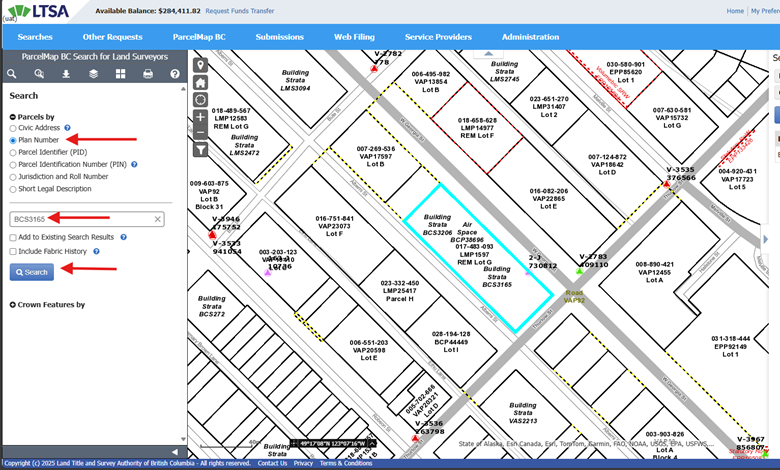
- From the ParcelMap BC menu select ParcelMap BC Search to launch the application
Find the parcel or plan you want to preview by searching the address, plan number, parcel identifier (PID), PIN, Jurisdiction and Roll Number or via Short Legal Description. Alternatively, users have the map tools to click/select the parcel.
In the Search Results, click on the Plans tab. Then click the ellipsis (three dots) next to the plan number
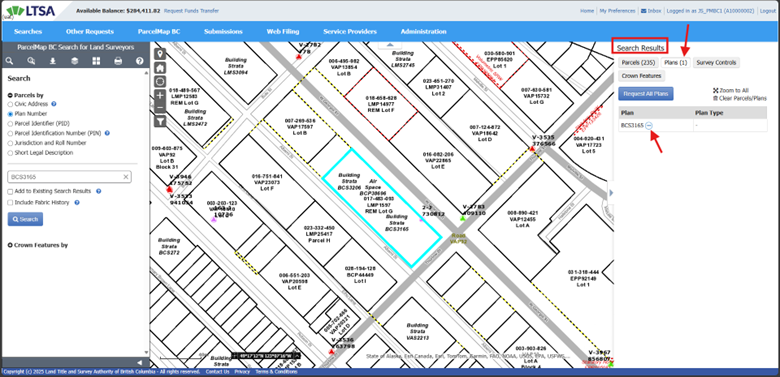
Select Preview Plan to launch the preview.
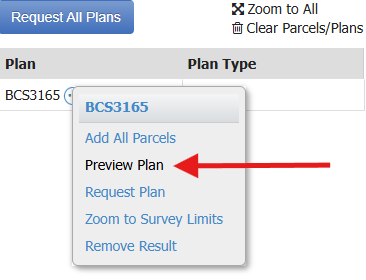
- The plan preview will open in a new tab or window and begin loading.
Review the plan in the viewer
A disclaimer may appear in a blue text box below plan image
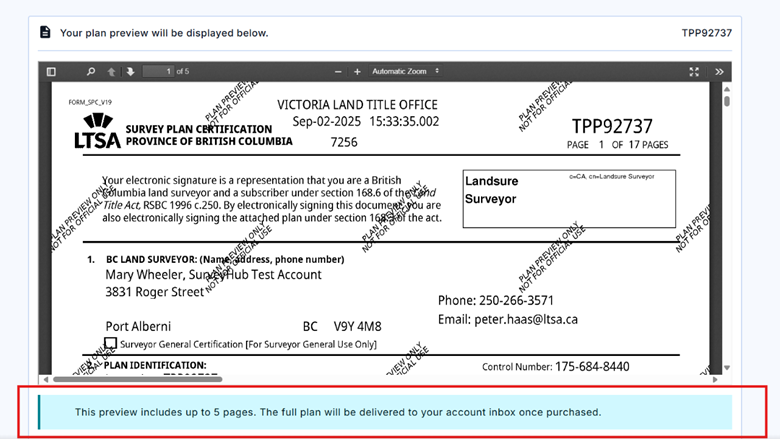
Useful Keyboard Shortcuts:
| Shortcuts | Functions |
| R | Rotate clockwise |
| Shift + R | Rotate counter-clockwise |
| H | Hand Tool (Use Mouse to drag to pan) |
| Ctrl + Mouse Scroll wheel | Zoom in/Out |
| S | Text Selection Tool |
| Up/Down/Left/Right | Arrow keys to move around when zoomed in |
| J | Next page |
| K | Previous page |
When a plan is not available in our electronic database, a preview will not be available and Scan on Demand option will appear instead for Enterprise users only.
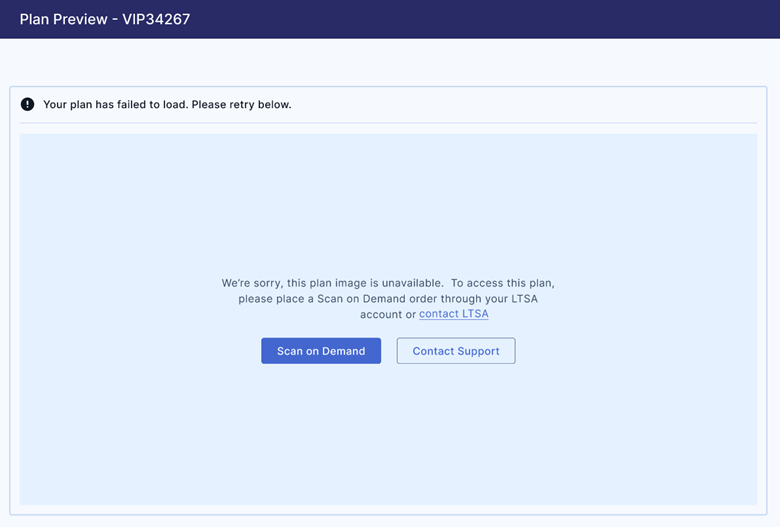
When an Explorer user tries to preview a plan that is not available in our system, they may get load failure message with an option to contact Customer Support or a Registry Agent.