
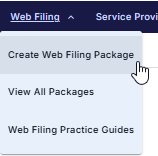
From any page of the LTSA's Electronic Services pages, rollover Web Filing and click Create Web Filing Package
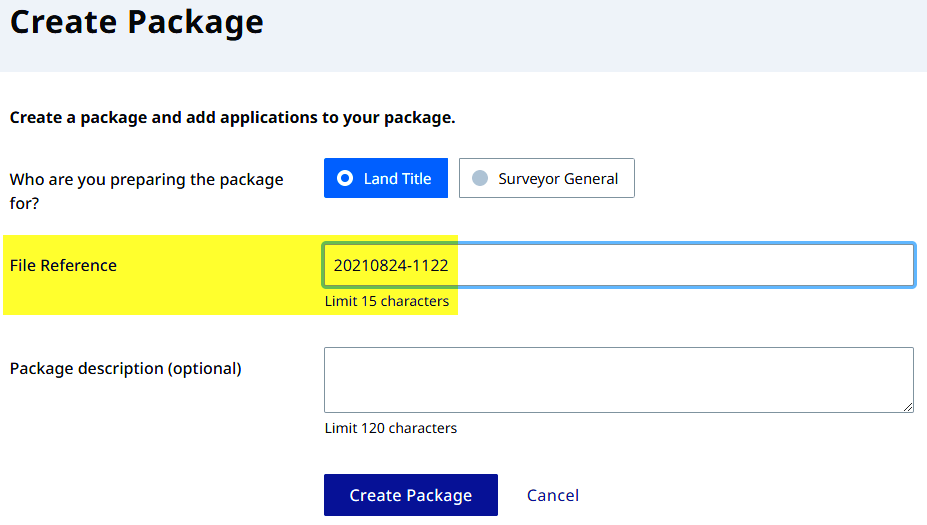
The Create Package page appears with the selector defaulting to Land Title. Enter your file reference (mandatory) and optionally enter a package description. Click Create Package
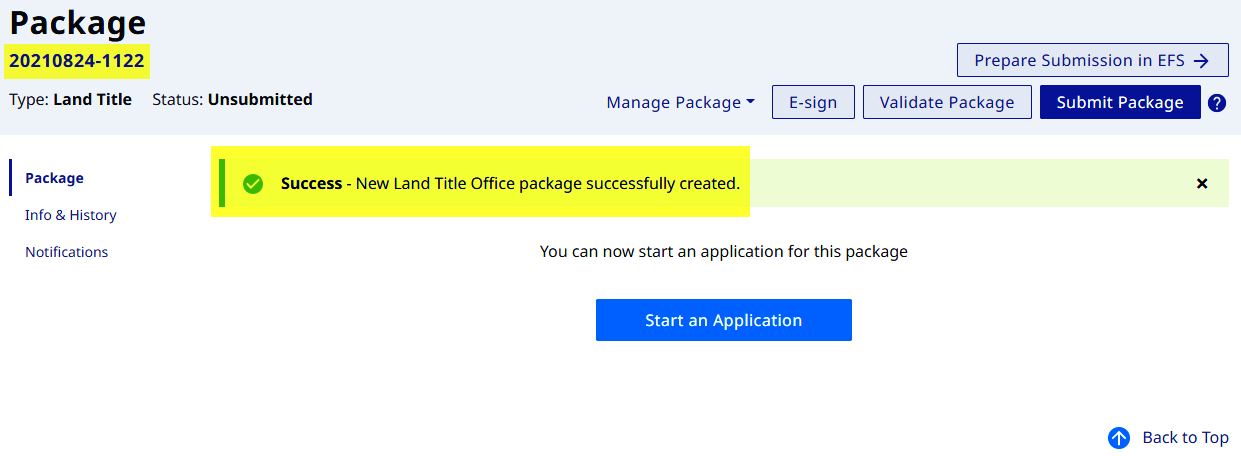
The Package page displays (typically with a success message) and your entries have pre-populated the File Reference and Package Type (submission office) fields. Click Start an Application
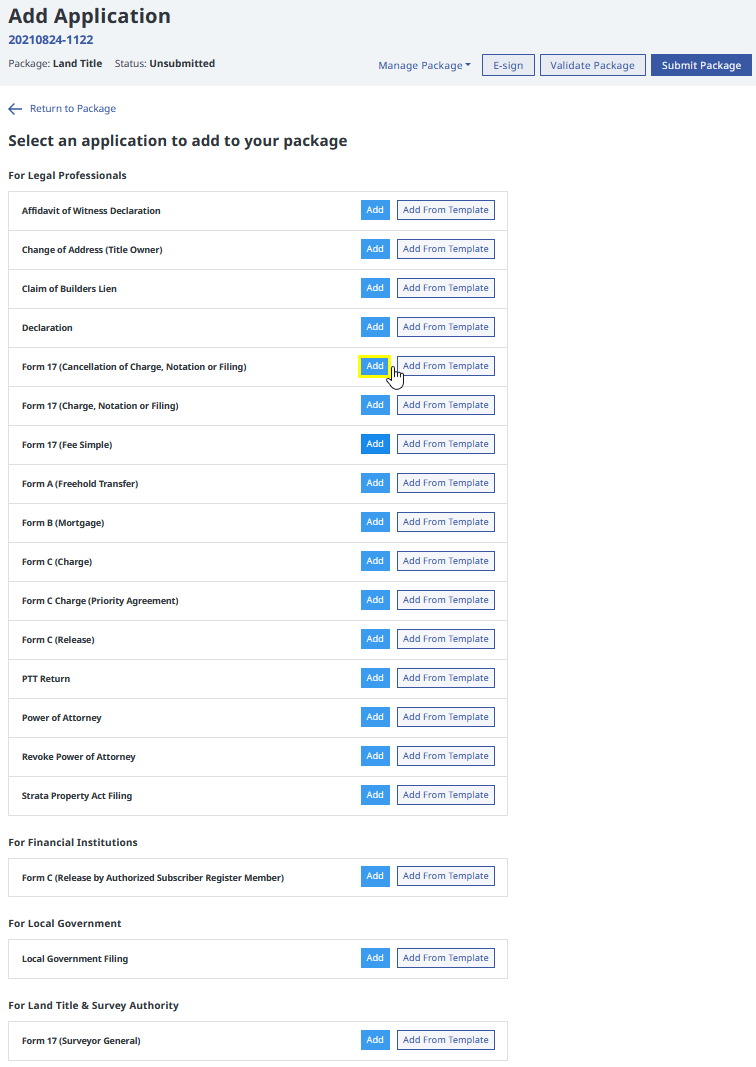
Choose the application that needs to be added to the package, then click Add.
Once the the application form has been completed and E-signed with a Juricert digital signature, click the Manage Package tab and select Prepare Submission in EFS. Alternatively, to submit immediately, click Submit Package
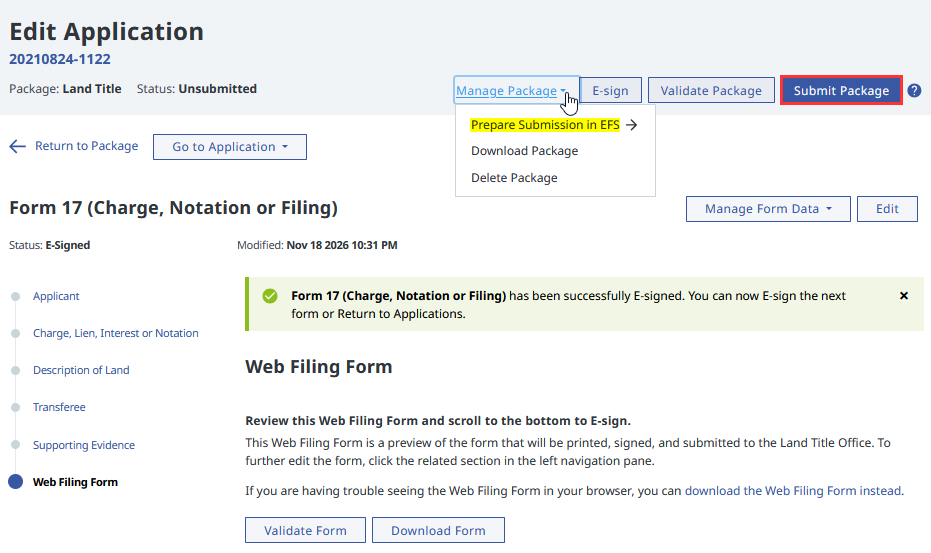
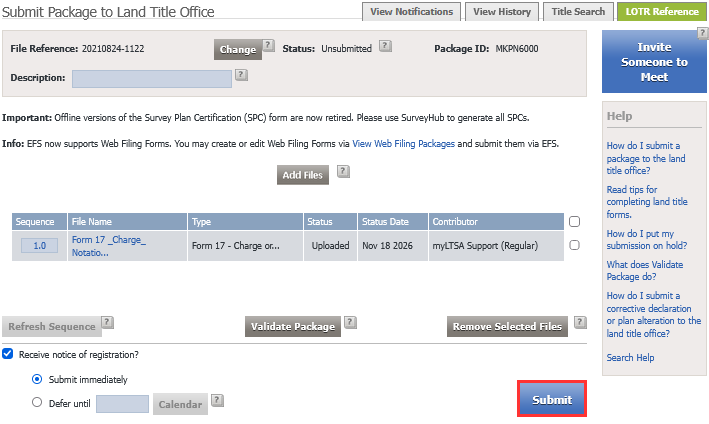
The land title package is now ready for submission in EFS.
- The web filing package status is now also updated to show that it has been "Sent to EFS"
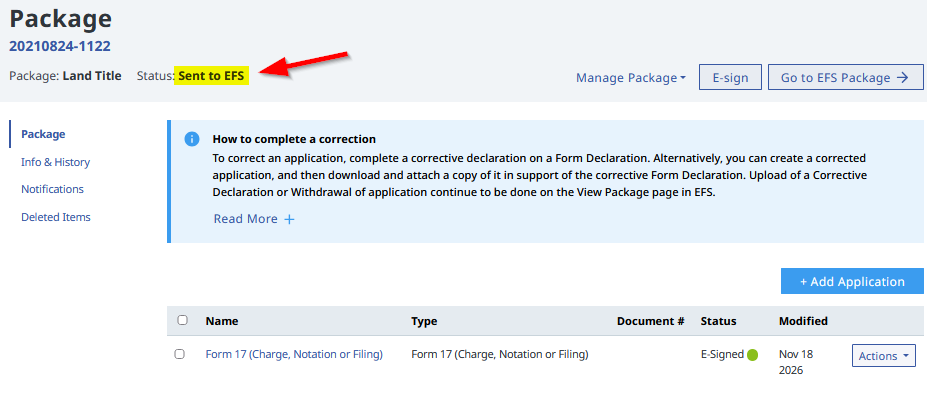
Please be aware that once a web filing package has been submitted or sent to EFS via the prepare submission option, additional forms should not be added to that package. The only exception to this rule is if the application gets defected and an corrective declaration needs to be added.
To add additional Land Title forms to an existing Package (that has not yet been sent to EFS), click + Add Application
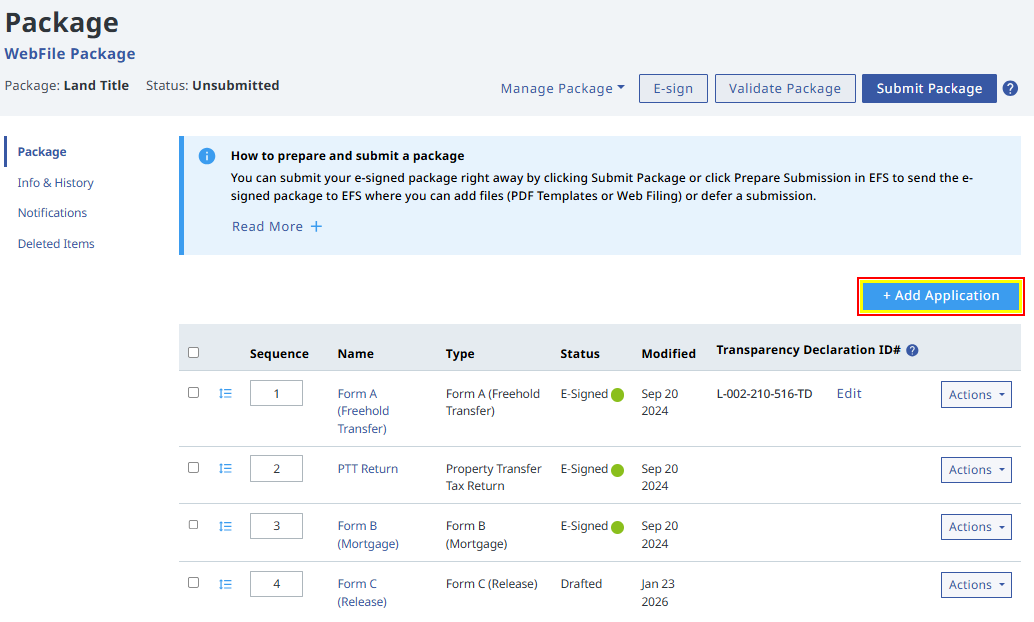
Find the form to include in your web filing package, then click Add
Alternatively, refer here to add a new form using a template
Edit and complete the selected application
To guide you in completing a form refer here to view the Land Title Web Filing Form Practice Guides
Click Save Progress to retain your completion status if you decide to leave at any stage of editing the web filing form. Clicking Continue will automatically save all data and move you on to the next section