
On This Page
You will need a BC Services Card Account before creating an account for BC Property Connect.
Create a BC Property Connect account
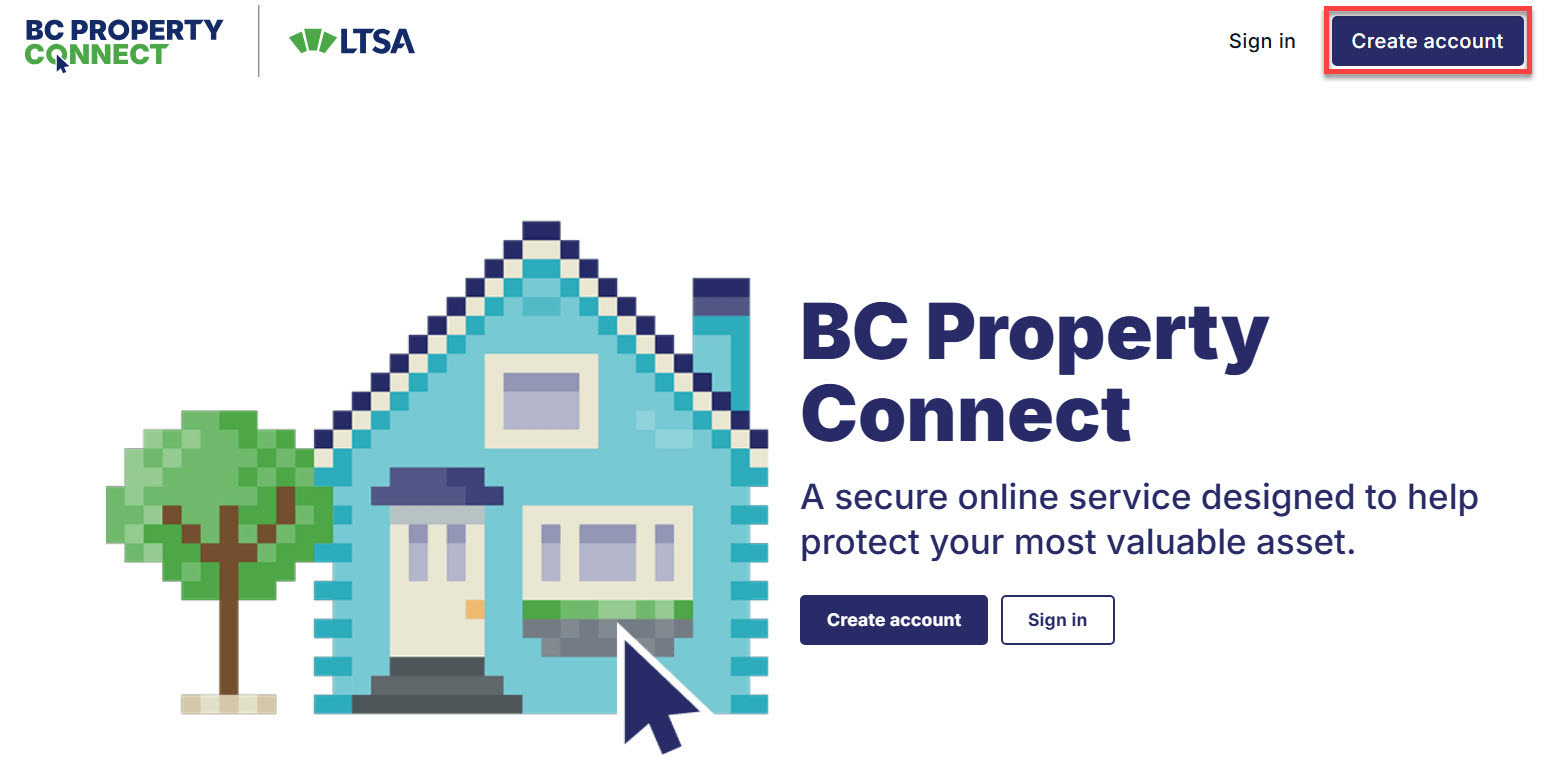
Navigate to the BC Property Connect sign in page and select Create account.
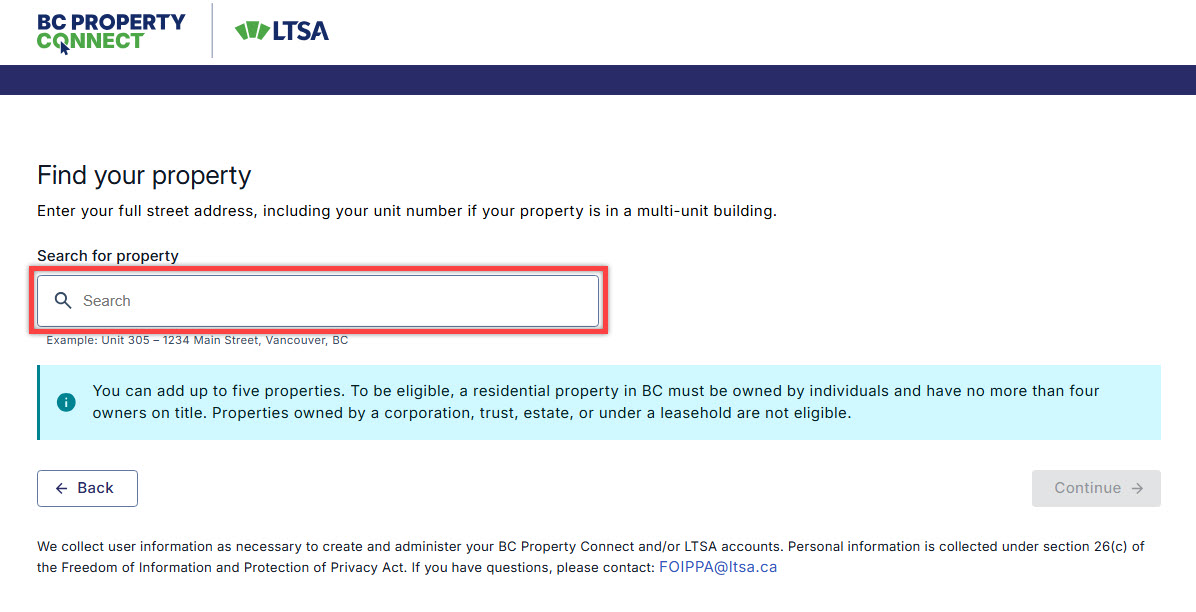
Enter your full address (including your unit number if you live in a strata) in the search bar.
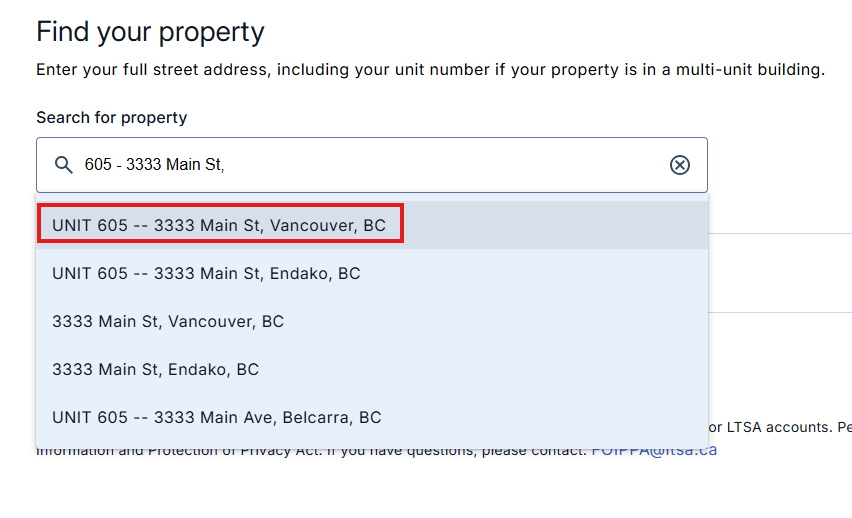
| 2.1 | As you begin typing, a drop-down list of matching addresses will appear. Select your address to add it to your BC Property Connect account, then select Continue. |
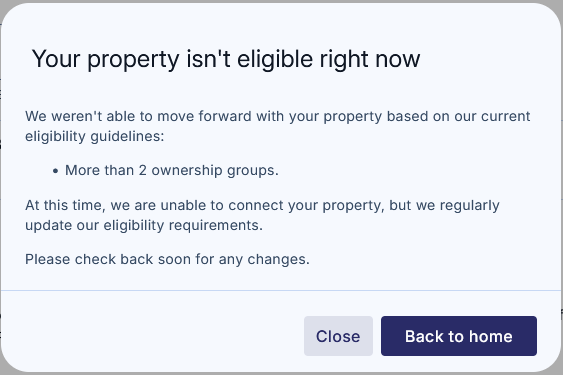
| 2.2 | If your address cannot be added to BC Property Connect, a pop‑up notification will appear indicating that your property is not currently eligible. In the example below, the property has more than two ownership groups on title, which means that it cannot be added to BC Property Connect at this time. |
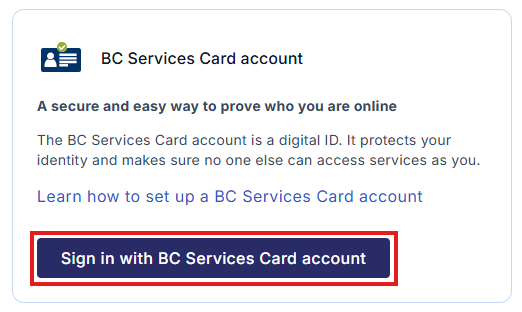
Select Sign in with BC Services Card account to continue. You will be redirected to the BC Services Card account login page. Follow the on-screen prompts to sign in using your BC Services Card account.
If you need help setting up your BC Services Card account, click the Learn how to set up a BC Services Card account link for further assistance.
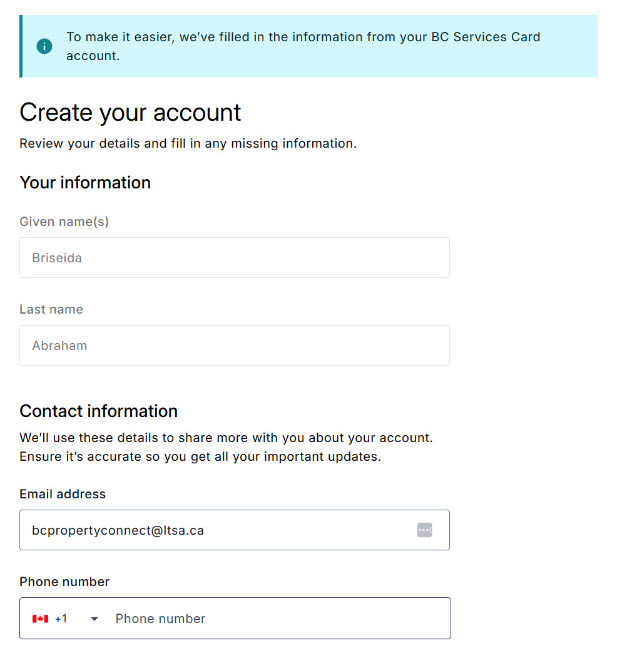
Enter your phone number in the sign up form. The given name, last name, email address and mailing address fields are automatically filled using the information from your BC Services Card account. The given name(s) and last name fields cannot be edited.
| 4.1 | (Optional) Select the checkbox if you would like to receive marketing emails. |
| 4.2 | Review the customer agreement, select the checkbox to agree to the terms and conditions, and select Create account. |
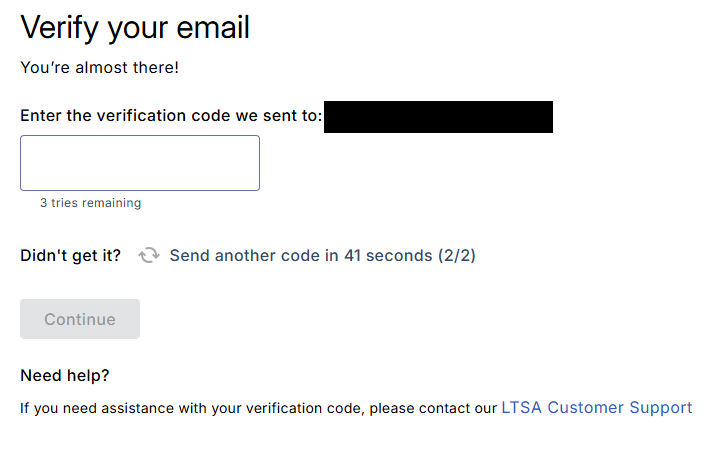
A one-time verification code will be sent to your email. Enter the code to complete your account creation.
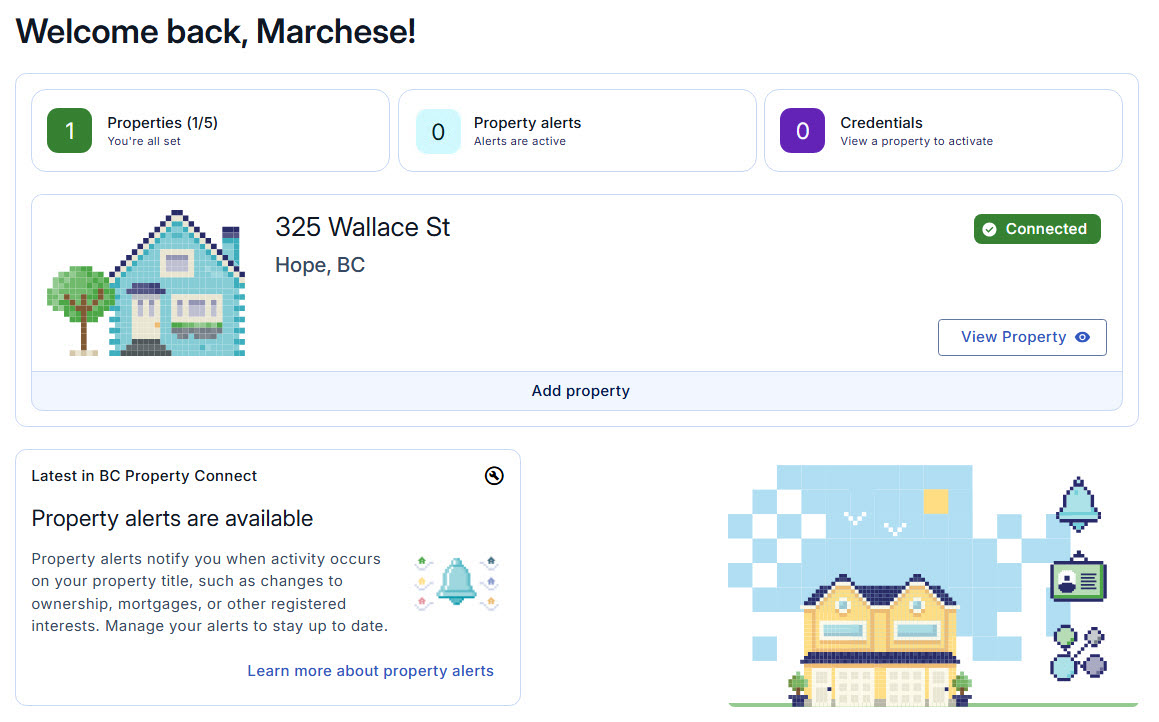
Once you have successfully completed the sign up process, you will be taken to the BC Property Connect homepage.
Add additional properties
After you connect your first property, you can add additional properties to your BC Property Connect account. You can add up to 5 properties to your account currently.
- Go to the BC Property Connect homepage.
On the property card, select Add Property.
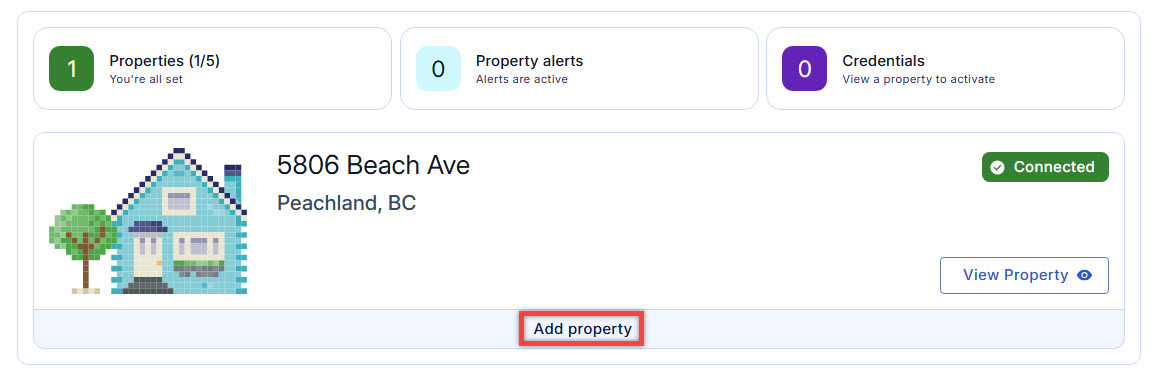
Select Add property to add additional property. Enter your full address in the search bar. Select the property you want to add.
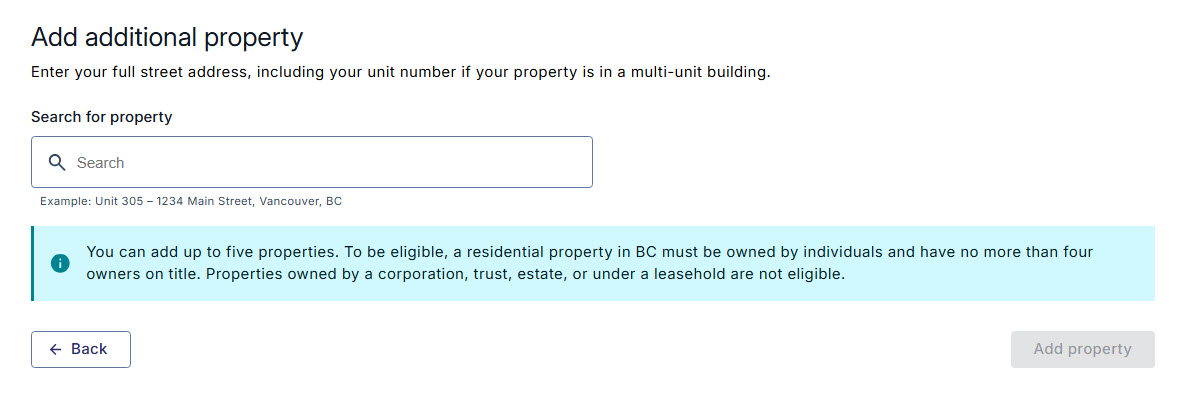
The property will be added to your homepage. Select View Property to view information about the property.
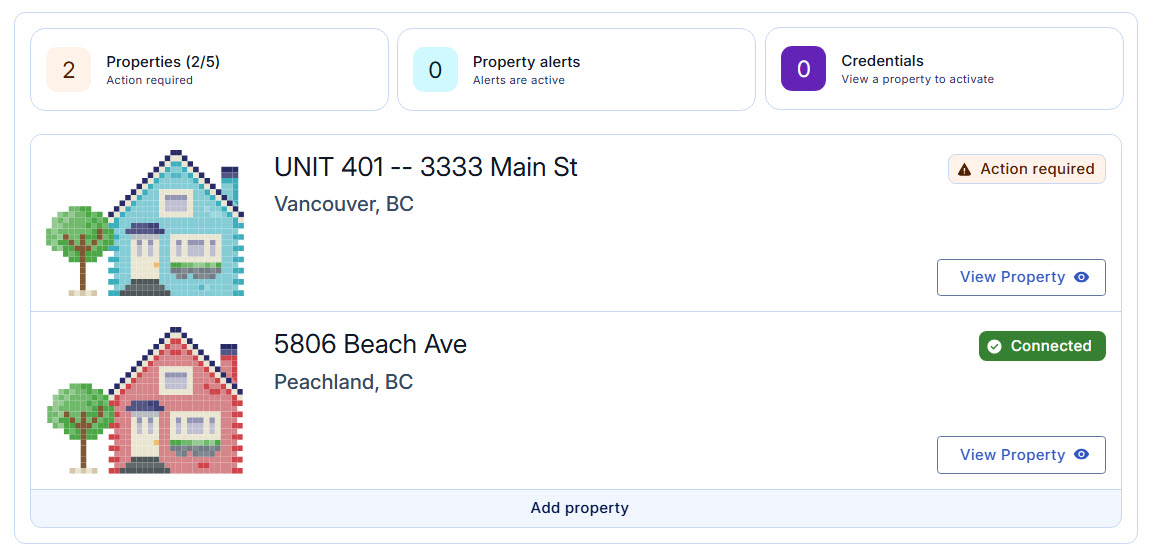
The newly added property will be added to the homepage You can have up to 5 properties in Connected or Action Required status. Properties with a Disconnected status do not count towards the five-property limit.
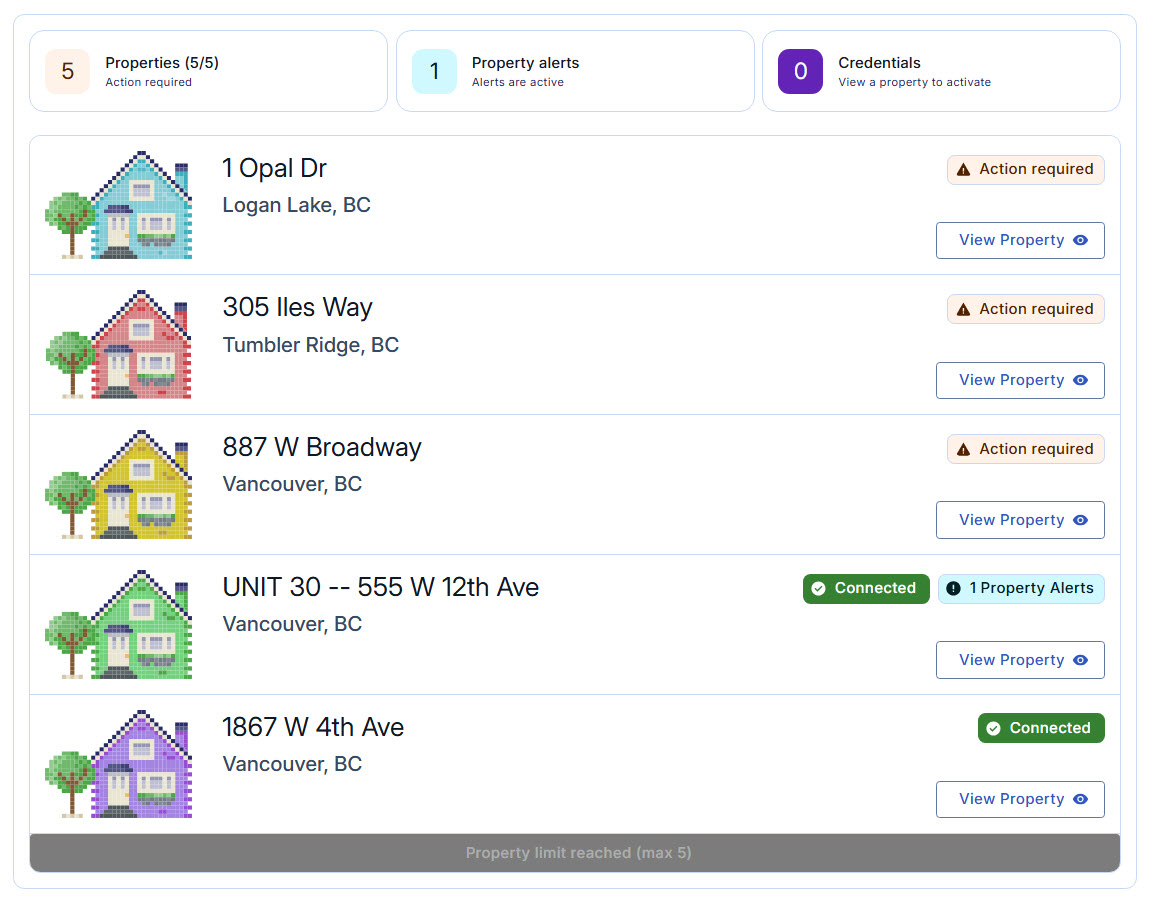
You can app up to 5 properties
Sign in to BC Property Connect
Go to the BC Property Connect sign in page and select Sign in if you already have a BC Property Connect account or have previously linked your BC Services Card account to your LTSA Explorer account.
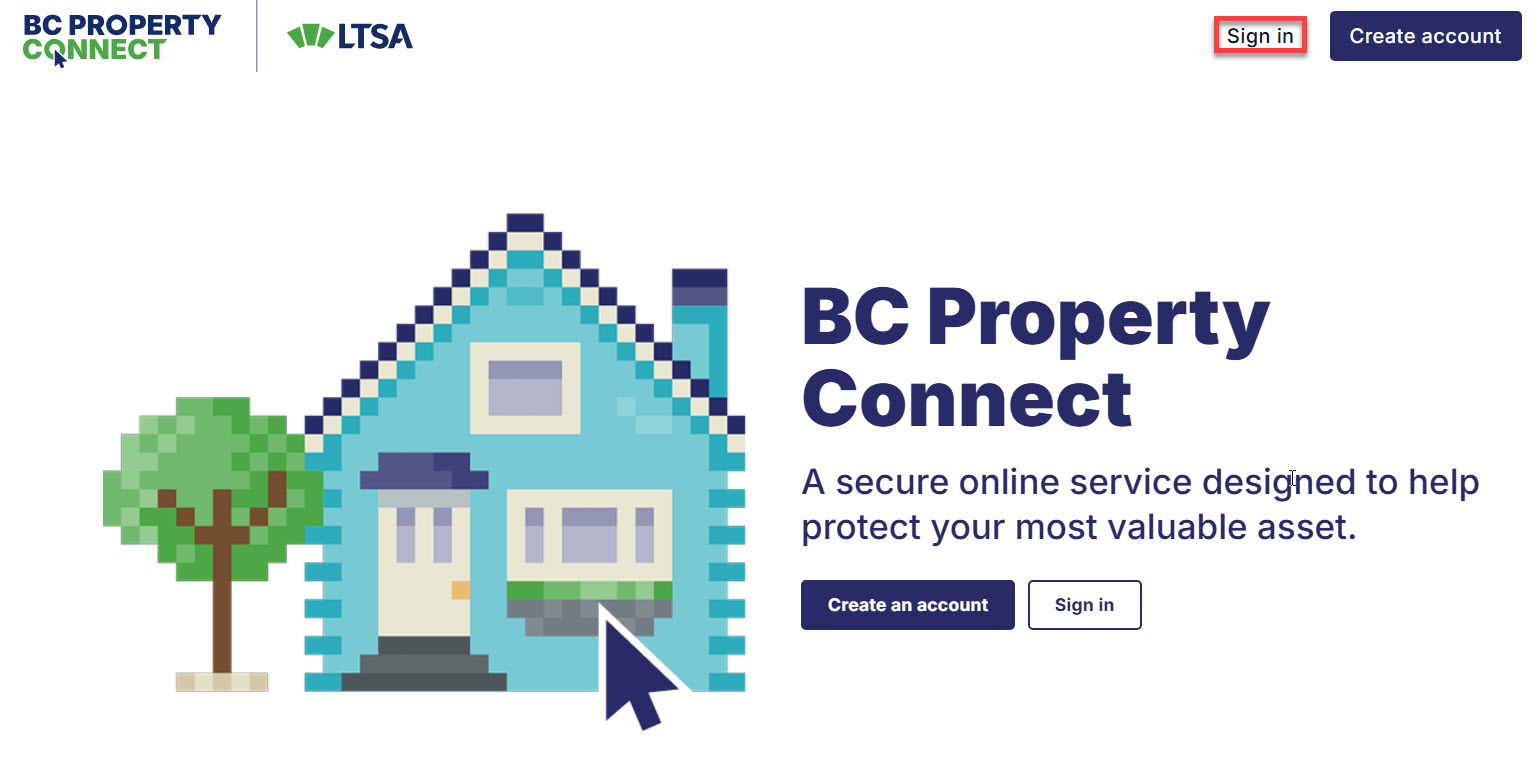
Select Sign in to login to BC Property Connect Select Sign in with BC Services Card to continue. You will be directed to the BC Services Card login page to sign in. Follow the on-screen prompts to sign in using your BC Services Card app.
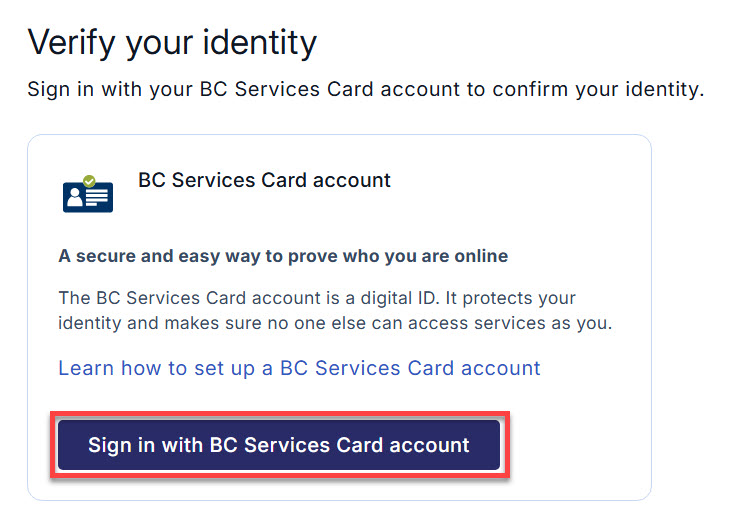
Select “Sign in with BC Services Card account” After you have successfully signed in to your BC Services Card account, you will be directed to the BC Property Connect homepage.
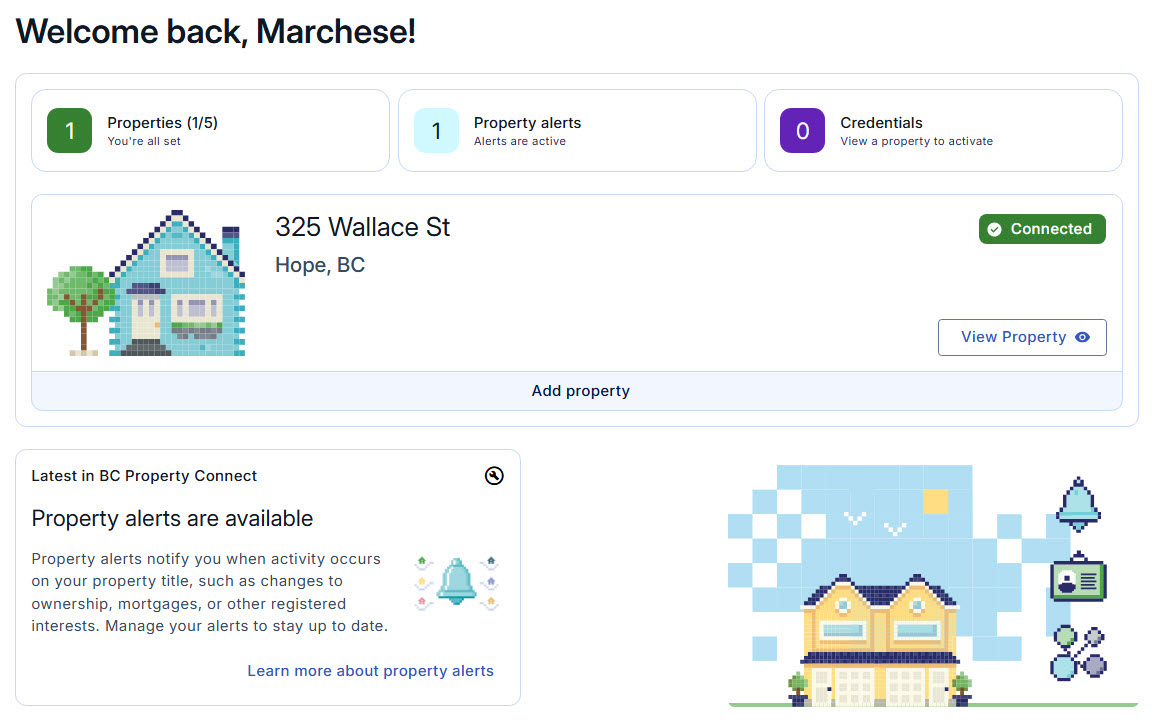
Successfully signed in to BC Property Connect