
There are two ways to download your LTSA order.
Explorer Inbox
To download an item from the LTSA Inbox, confirm the availability status of the item(s) requested, then click on the name corresponding to that item under the Item Reference column.
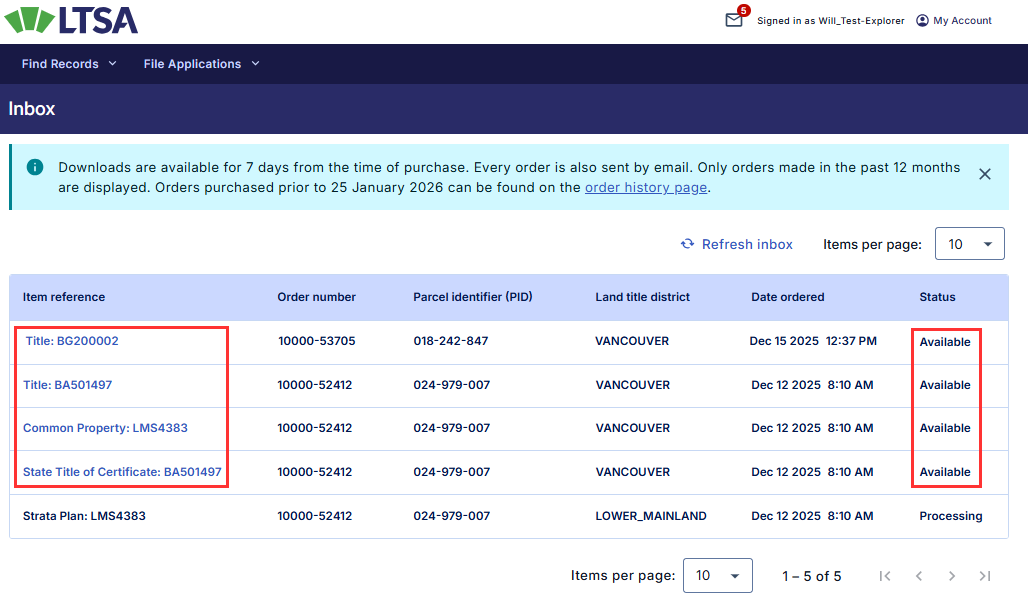
The Inbox will only show orders made in the past 12 months. If a new item is in the Processing status, click Refresh Inbox to update the status. Items in the LTSA Inbox are available for download for up to seven days, and once the item has an Expired status, it is no longer available for download.
The item details page will open in the same browser window with a download link near the top for the attached item.
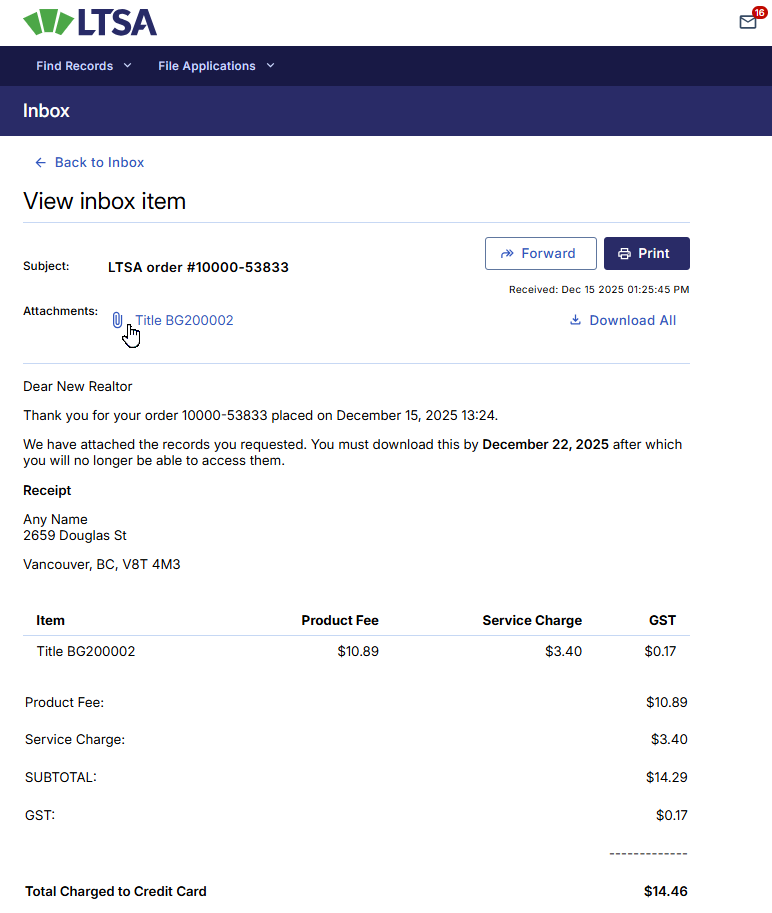
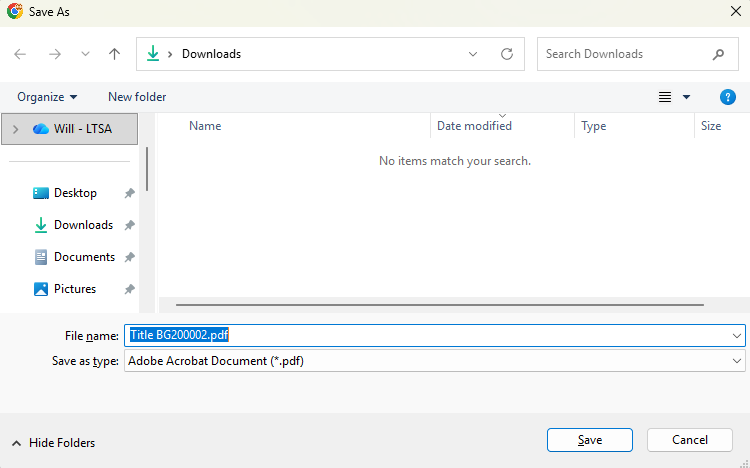
Depending on your browser's settings, clicking on the link will either open the file in the browser window or prompt you to save the PDF file to your computer which requires a PDF viewer such as Adobe Acrobat Reader to open and/or print the document.
Email Receipt
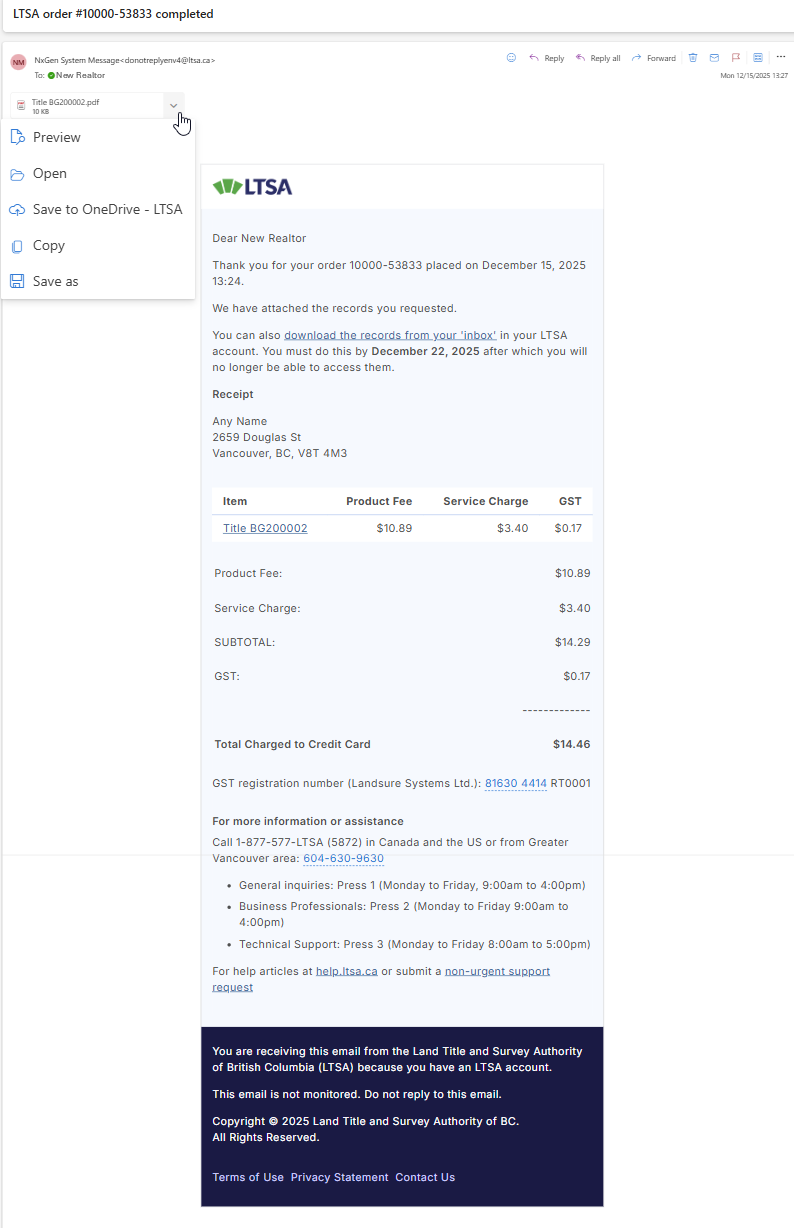
An order confirmation email will also be delivered to the email address registered to your account, with the document attached.
To download an item from the email receipt, open the corresponding email and click each PDF attachment to save it for your records or retain the email for future reference.
In most cases, the items you ordered will also be attached to the order confirmation email (unless the total attachment is over 10MB).
You will need a PDF viewer such as Adobe Acrobat Reader to open or print the document(s) attached to the order confirmation email.
If the total attachment size is over 10MB, your ordered items can be retrieved by using the link in the email corresponding to each item. You will need to be logged in to your Explorer account before you can access each item.