
When printing a report, please note that the map image is not consistent with the scale bar or scale text shown on the report. A disclaimer has been added to the Print Report screen to notify users about this discrepancy. Please be assured this issue only affects the Print Report function; the on-screen display scale remains accurate.
Use the print feature, to print what is displayed in the ParcelMap BC parcel fabric.
Pan and zoom to the location you want to print. Ensure all the layers that you want to be visible on the print are checked on, and anything you do not want to see is unchecked.
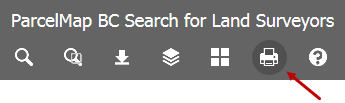
Click the Print Map icon
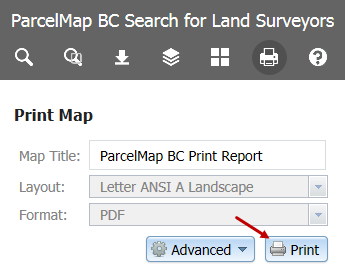
Optionally, enter in a name for your print in the Map Title field
Select a Layout from the drop-down menu to specify the paper dimensions of the printed map
Select a Format from the drop-down menu to specify the output format of the printed map
Optionally, click Advanced for more options to customize the printed map
Click Print to generate a PDF print
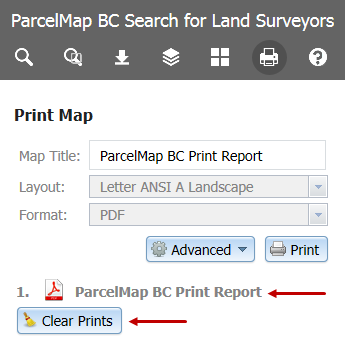
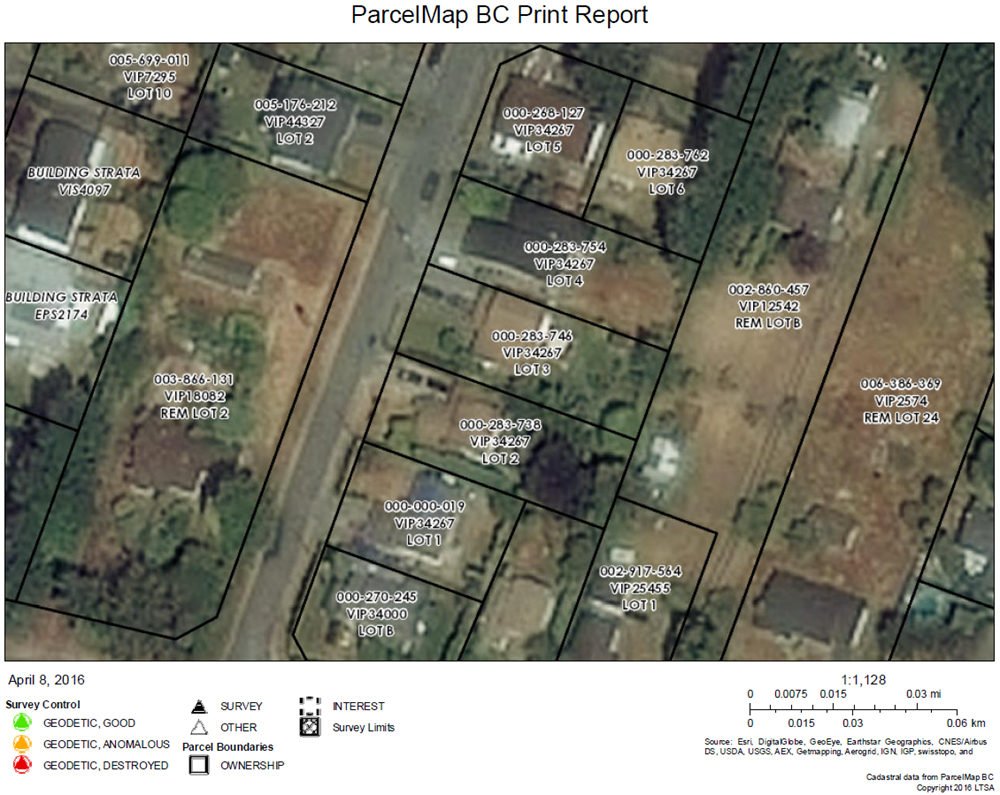
To view the printed map, click the map title link. Once the PDF print has open in your PDF viewer, you can save or print the map to a physical printer.
Your prints will be retained for your session. To remove any generated printed maps, click Clear Prints or logout of LTSA System which will clear your prints.
A known bug will prevent printing if a locate pin is in on the map. Clear all pins by clicking the trash can icon if you encounter an error when printing.
In This Section
Introducing an improved ParcelMap BC
An upgraded version of ParcelMap BC has been released featuring a new layout, easier navigation, direct integration with related search services including plan and title applications and access to enhanced map capabilities and features. To try the upgraded version of ParcelMap BC, please go to ParcelMap BC New.
The classic version of ParcelMap BC will be available in parallel, until it is retired later this fall. Look for ParcelMap BC classic and ParcelMap BC new in your LTSA account menu options.