
Once you have added a Development, you can Add Assignments and View Assignments.
There are two ways to add Assignments:
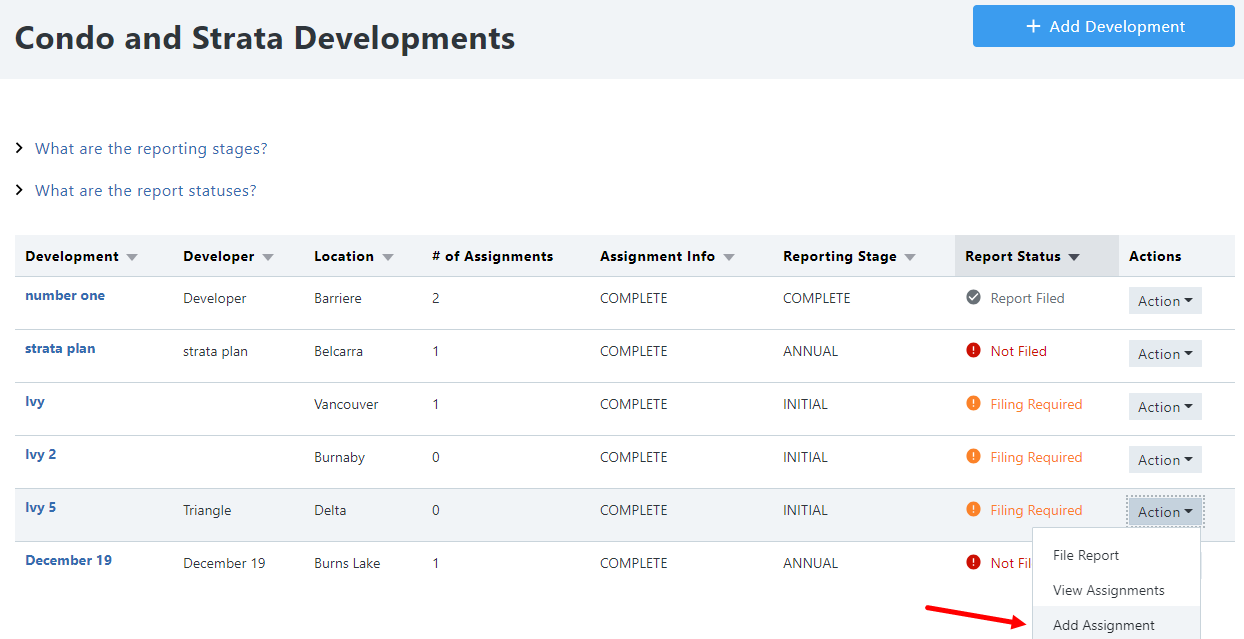
Add Assignments at the View Developments page
When Viewing the list of your Developments, click the Action drop-down menu and then Add Assignment.
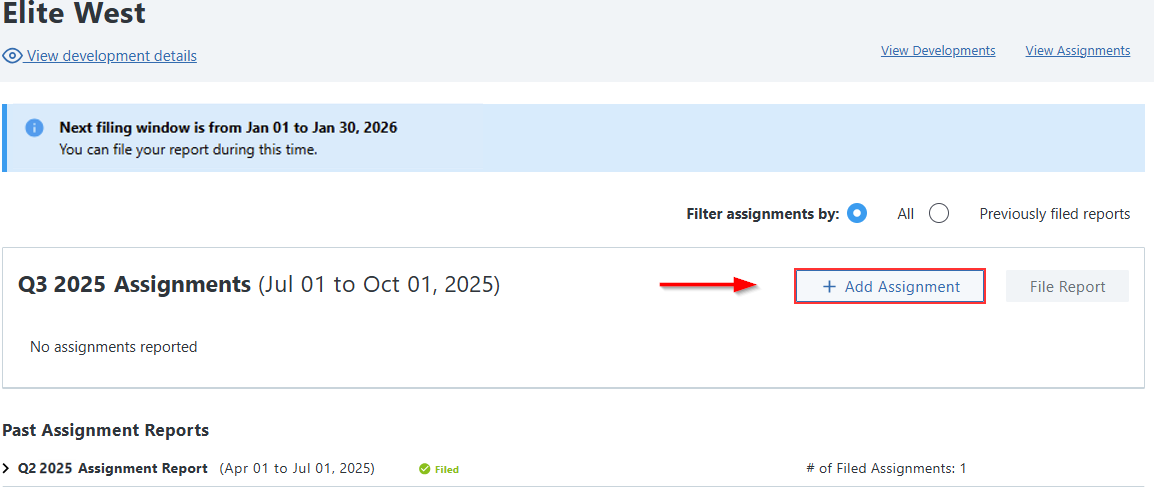
Add Assignments when viewing your individual Development
Click on an individual Development name and click Add Assignment
Add Assignment Information
Enter the details for the assignment information. There are a number of pages of assignment information including Assignment, Assignor and Assignees. The Review page will show a summary of all data entered.
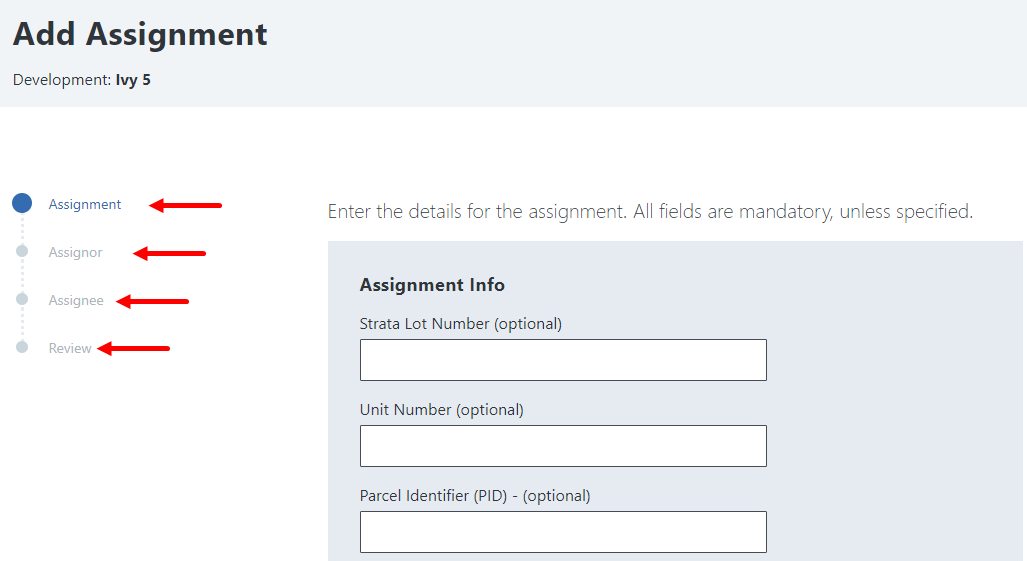
All fields are mandatory in order to file a report, unless specified.
Add Assignors and Assignees
Select Assignor and Assignee type.
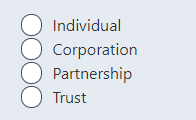
Additional data will be collected if the Assignor or Assignee is a Corporation, Partnership or Trust.
Enter the details for the Assignor and Assignee.
All fields are mandatory in order to file a report, unless specified.
You may add additional Assignors or Assignees as needed and click Continue.
Review
At the Review page you will get a confirmation that the information has been saved and whether or not it was complete.
If additional edits are required, click on Go to Assignment

There are two ways to view Assignments:
View Assignments when viewing a Development
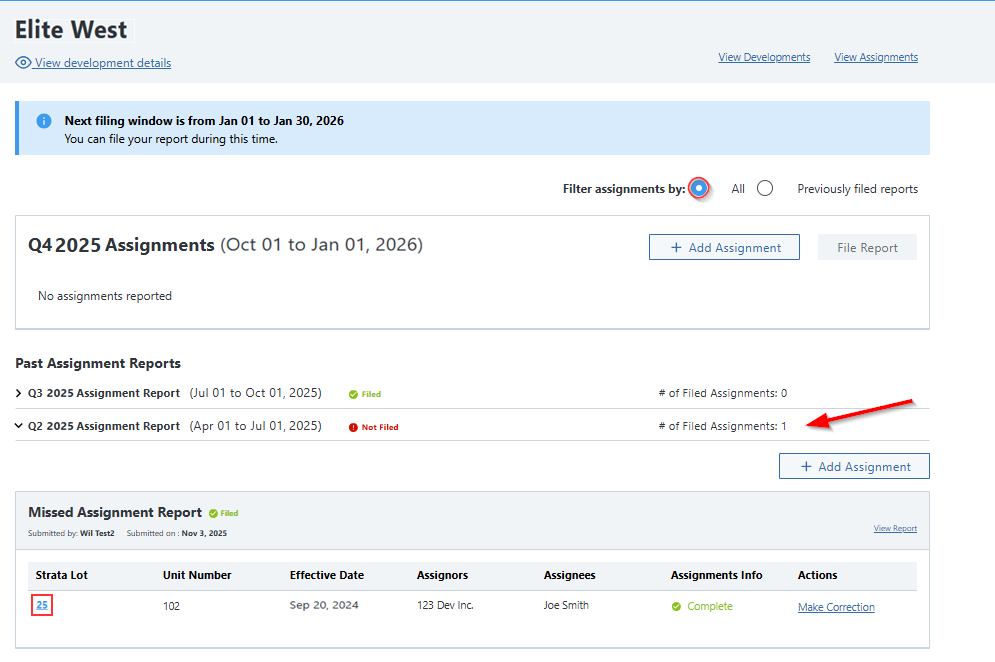
From the Developments page, click on the name of the development to expand it. You may use the filters at the top to view all assignments or those from previously filed reports. Once you have located the assignment you want to view, expand the assignment report and click on the strata lot number to view the assignment.
View Assignments using the Action drop down
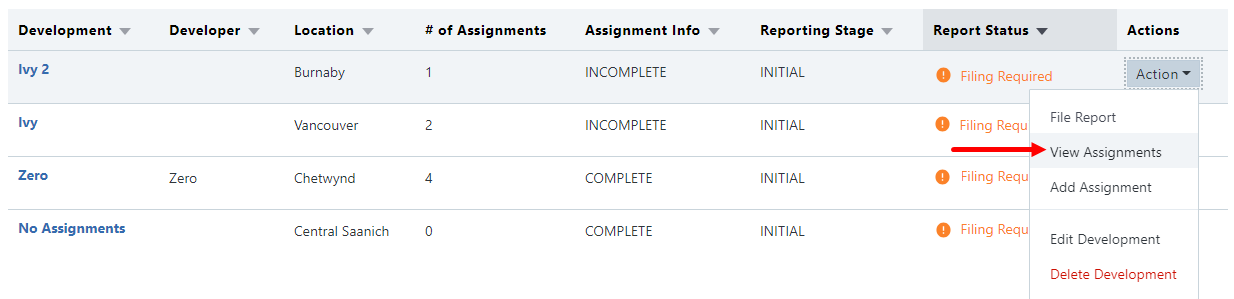
Or, from the Developments page, can click on the Action drop down next to the development then click View Assignments.
View Assignment
When viewing the Assignments page, the reporting period is displayed along with the following information:
- Strata lot: The lot number of the Strata. Clicking on this value opens the details of the Assignment
- Unit Number: The unit number of the strata property
- Effective date: The consent date from the contract details.
- Assignors: The name(s) of the Assignors.
- Assignees: The name(s) of the Assignees.
- Assignments Info: Confirms whether all mandatory fields are Incomplete or Complete. This does not guarantee the accuracy of the information.
- Actions: Options include: Edit or delete the Assignment information.

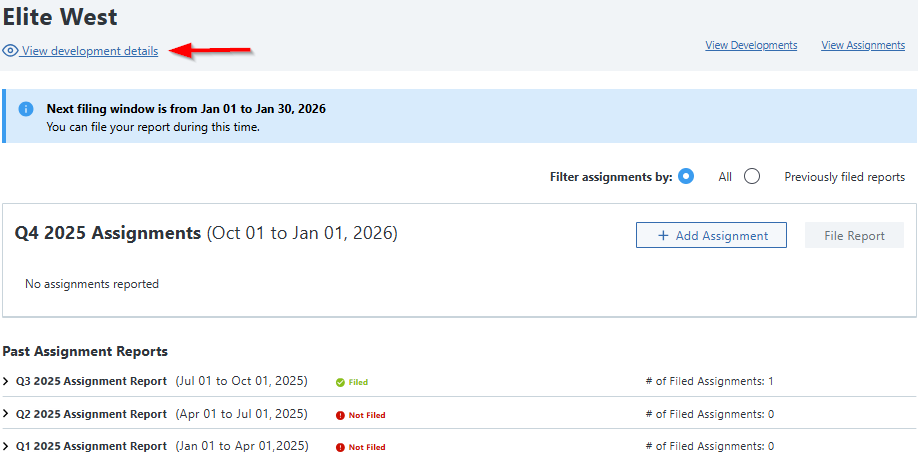
To view or edit the Development information, from the Assignments page, click on View development details.
- The reporting period is displayed at the top of the page.
- The banner will be orange when the filing window is currently open.
- After the report has been filed, the Assignment report will show in the previously filed reports at the bottom of the page.
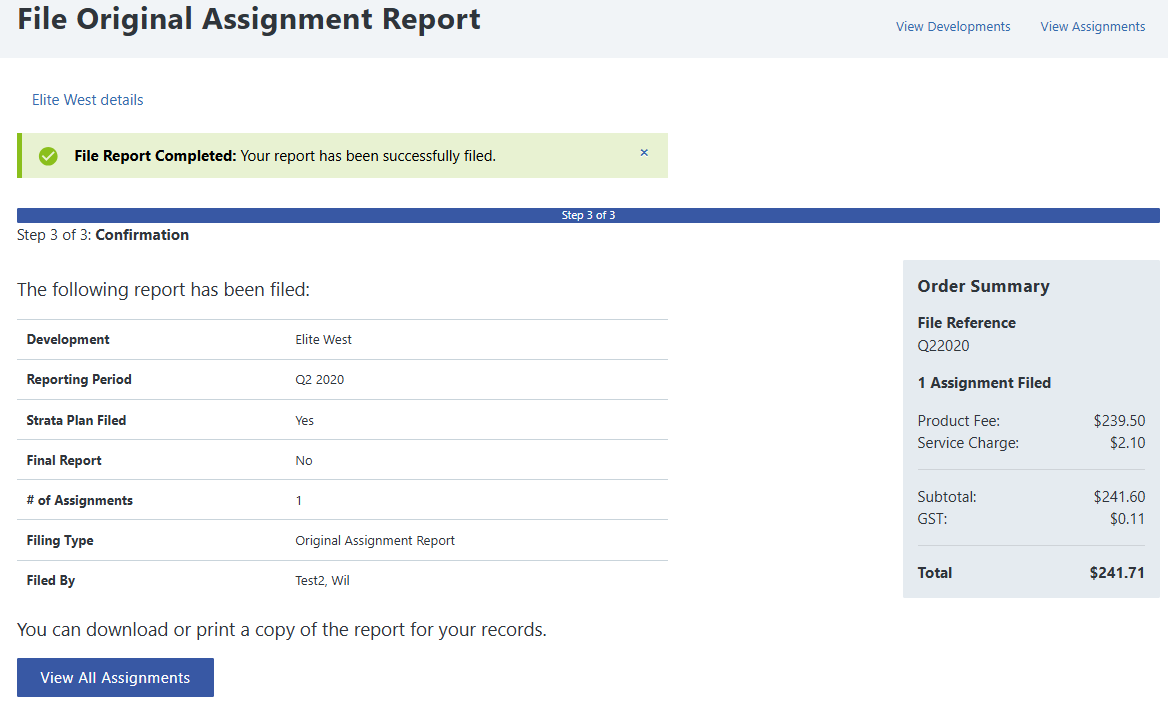
Click here to learn more about Filing an Assignment report.