
On This Page
A person other than a person who was a reporting body may, by application to the administrator, request that corrections or changes be made to a filed transparency report, reported information or publicly accessible information under s. 42 of LOTA. See Correct Information (s.42) for more information.
Under s. 16 and 17 of LOTA, reporting bodies must file a new transparency report to correct or change information in a previously filed report. Select data can be carried over to the new filing. Learn how by choosing from two scenarios: from the originating user account or from a different user account.
How to Correct a Filed Transparency Report from the originating user account (section 16 or 17 of LOTA)
If there are title or charge numbers being added or removed you will need to submit a new Transparency Report.
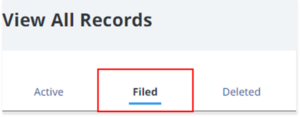
From the LOTR Filings section, click on the "Filed" tab.
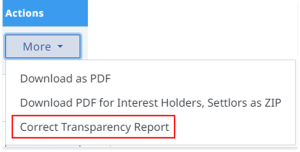
Locate the filed Transparency Report that needs to be corrected and then under the Actions column click on the "More" button and select "Correct Transparency Report".
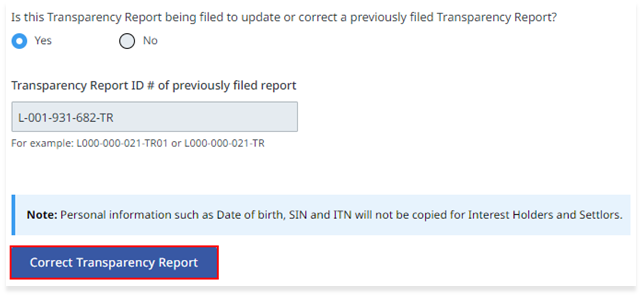
When the page loads, the default selections and Report information will appear and cannot be changed. Confirm that the Report ID is correct and click the "Correct Transparency Report" button.
Update the information as required and enter the birthdate/SIN/ITN of all settlors and/or interest holders.
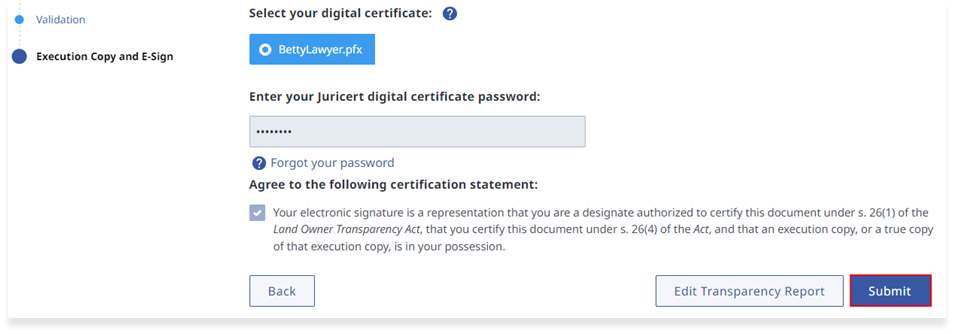
Certify the Transparency Report and complete the Certification section.
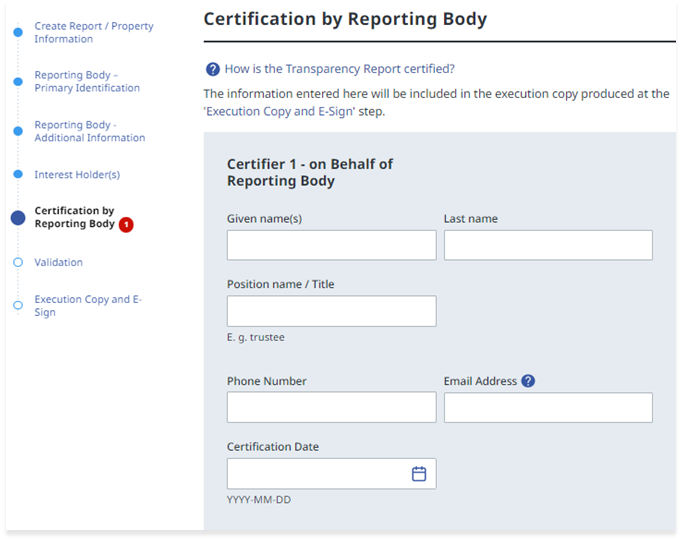
Once the corrected/updated form has been certified and E-signed, submit by clicking on the "Submit" button.
Correcting a Filed Transparency Report from a different user account (section 16 or 17 of LOTA)
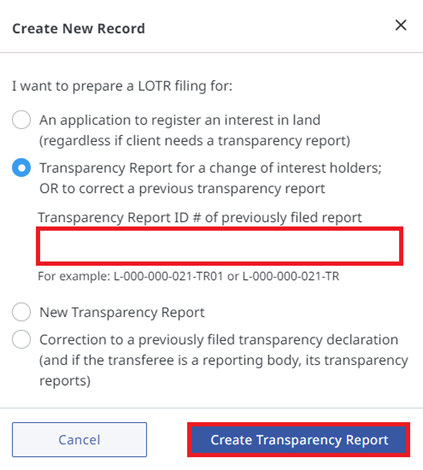
From the LOTR Filings section, click on the "+Create New Record" button at the top of the page.

From the popup wizard, choose "Transparency Report for a change of interest holders; OR to correct a previous transparency report" and enter the Transparency Report ID # of the previously filed report. Then click the "Create Transparency Report" button.
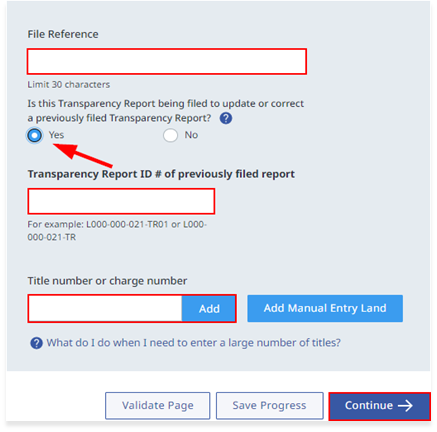
Enter a File Reference, the Transparency Report ID # of the previously filed report and add the Title/Charge number. Press the Continue button and proceed to complete the rest of the form.
If you do not know the Transparency Report ID# or you are adding/changing Title/Charge numbers you will need to submit a new Transparency Report by selecting "No".
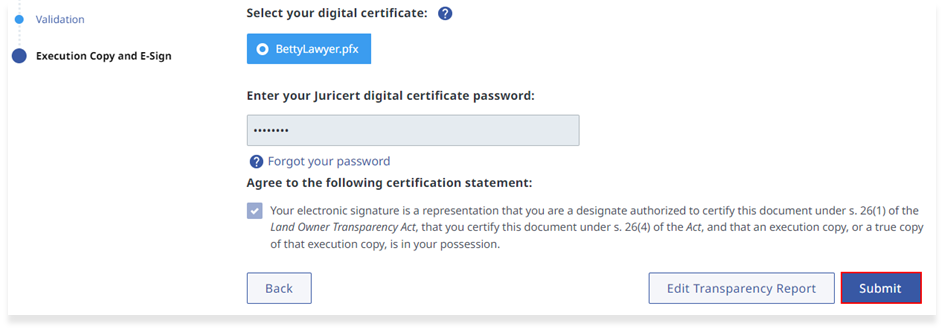
Once the completed form has been certified and E-signed, submit by clicking on the "Submit" button.
For instructions on how to correct Transparency Report data, please refer to the video below.