
On This Page
How to copy Transparency Report data when copying select content from a transparency report created incorrectly as part of a joint filing to a new stand-alone filing:
Should a transparency declaration and transparency report be created inadvertently when only a stand alone transparency report is required, the "copy transparency report" function allows information to be copied to a new transparency report. Chose "Copy Transparency Report" from the drop down menu of the "More" button.
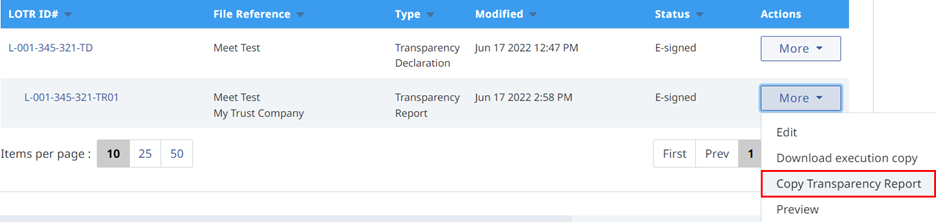
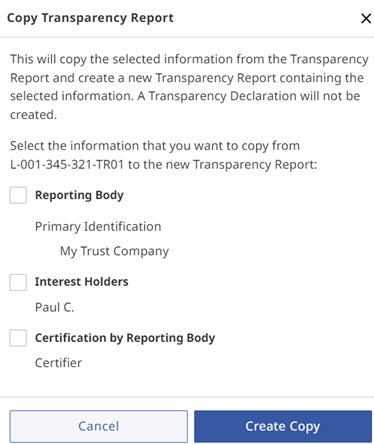
This option provides the user the ability to choose the type of data to be copied to a new stand alone transparency report.
The transparency report will need to be certified by the reporting body
How to copy Transparency Report data where there is a change in interest holders or for a correction or amendment to a previously filed transparency report where the original lands have changed, due to sale or subdivision. Follow these instructions to carry selected information from a previously filed transparency report to a new transparency report:
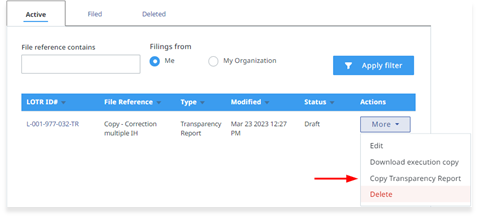
From the LOTR Filings section, click on the Active or Filed tab.
When the transparency report containing the necessary data has been located, click on the More button and select "Copy Transparency Report".
Select what to copy by clicking the individual checkbox(es) within a data section or alternatively, click the data heading checkbox to select all items of that section. Choosing the checkbox in the Data Type heading will select all data to be copied.
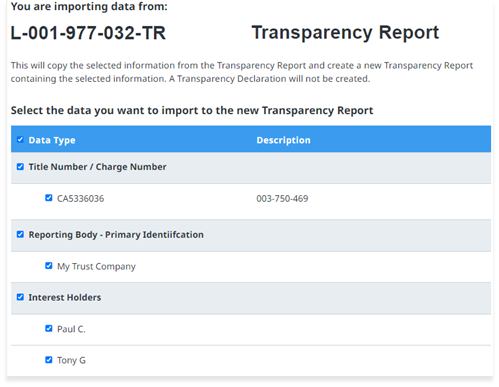
Personal information such as Date of Birth, SIN and ITN will not be copied for Interest Holders and Settlors.
After selecting the data to be copied, click the "Create Transparency Report" button.
Go through each section of the form to confirm all the copied data is correct.
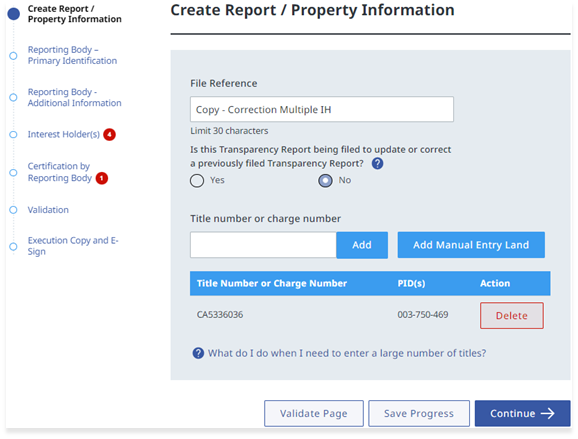
Update the information as required and enter the Date of Birth/SIN/ITN of all settlors and/or interest holders.
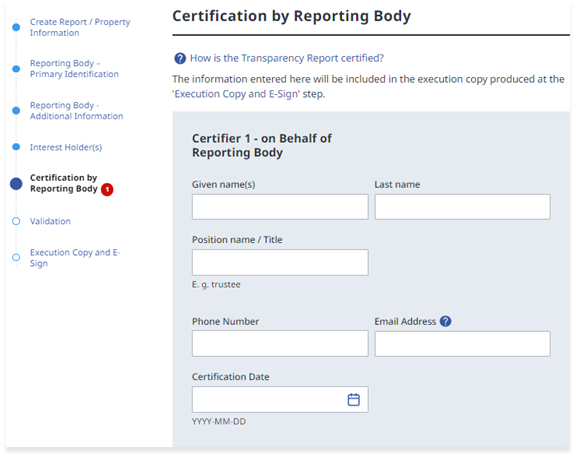
Certify the Transparency Report and complete the Certification section.
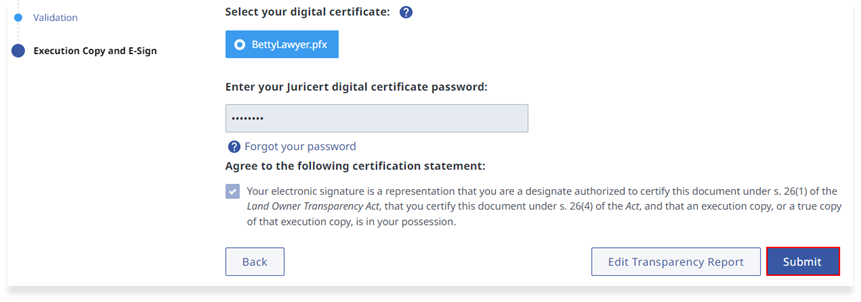
Once the form has been certified and E-signed, it can registered by clicking on the "Submit" button.
For instructions on how to copy Transparency Report data, please refer to the video below.