
Use the BC Services Card to register or sign in to your Explorer account
Summary of steps to use your BC Services Card app to sign in or register for an account to use LTSA online services.
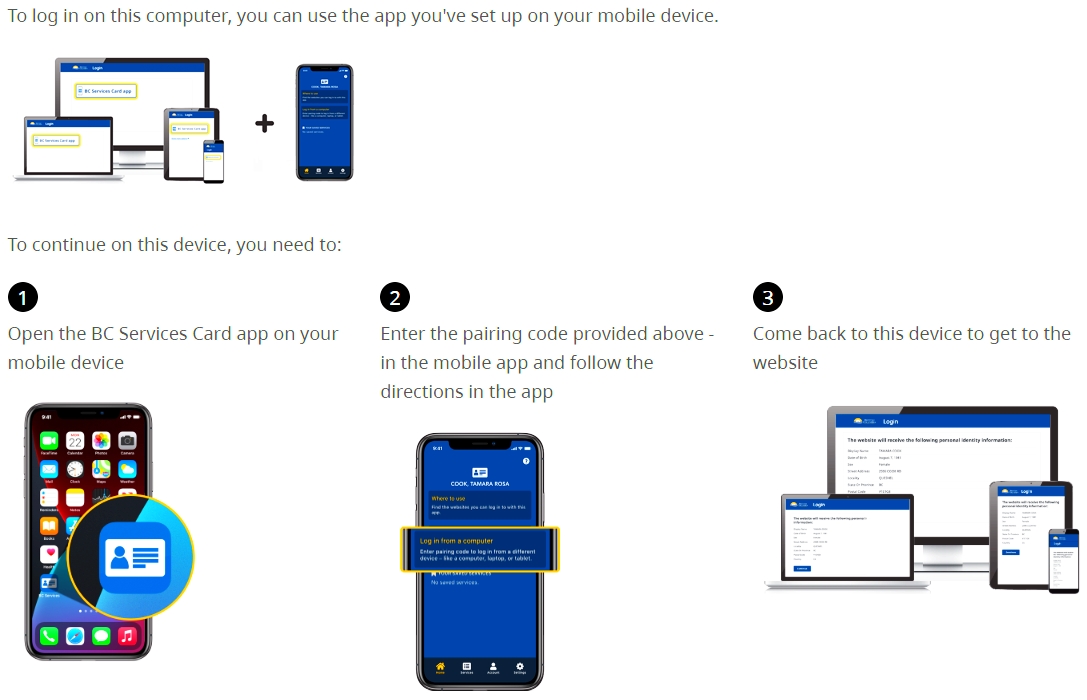
For more information see the BC Services Card Account.
Sign in to the Explorer account using your BC Services Card app
Click the link in the email sent to you.
On LTSA Sign-in page, click Sign in with BC Services Card account.
On the BC Services Card Login page, click BC Services Card App.
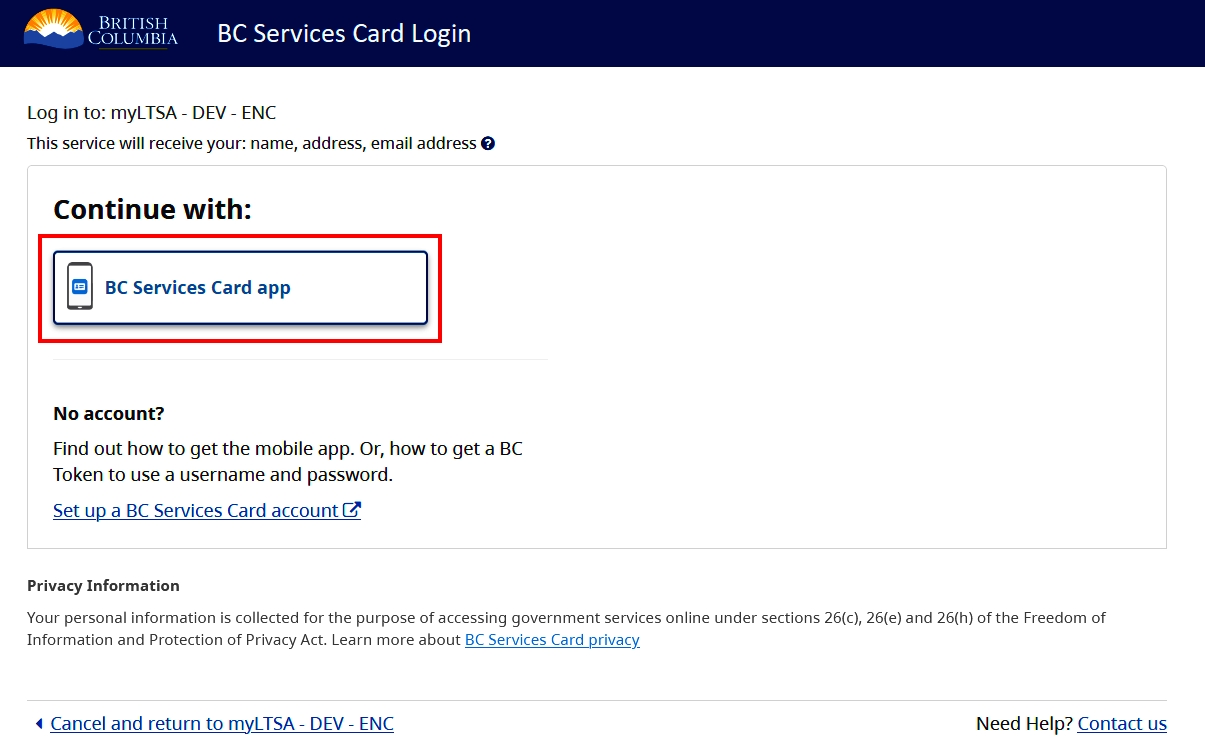
Complete the steps on the BC Services Card Login screens, as instructed.
Register an Explorer account using your BC Services Card app
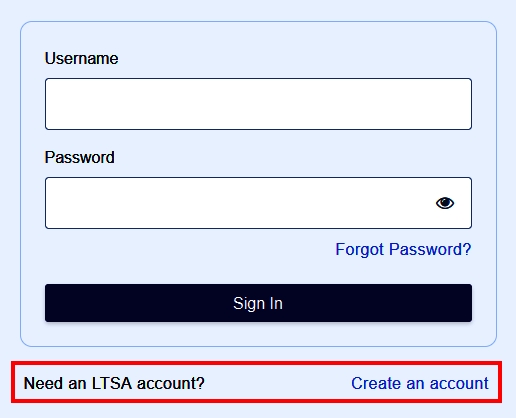
On LTSA sign in page and click Create an account.
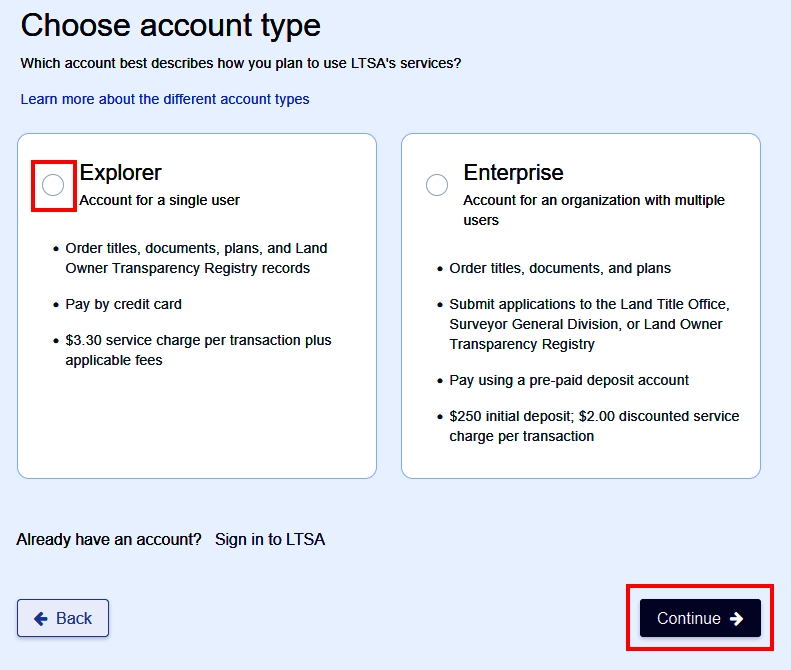
Select the Explorer account type, then click Continue.
When BC Services Card message appears, click Yes, continue.
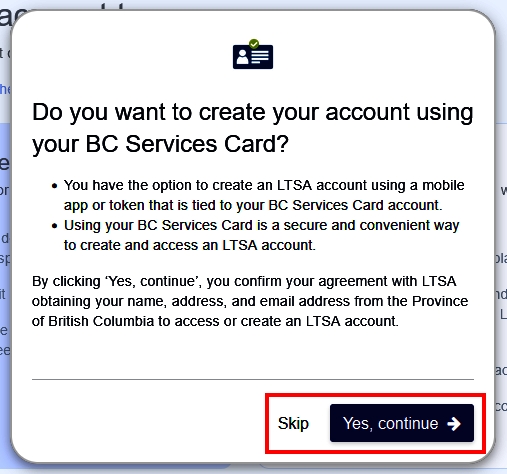
On the BC Service Card Login page, click BC Services Card app.
On your BC Services Card app, select the option to Login from a computer.
Enter the pairing code that is generated onscreen.
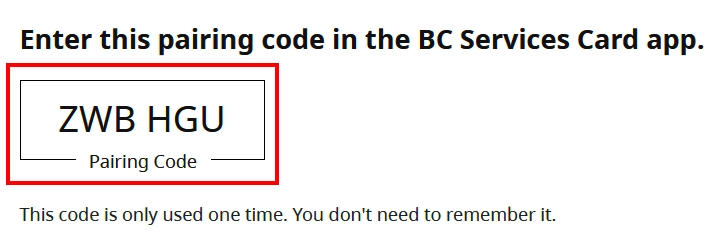
Continue on to complete the steps on the BC Services Card Login screens
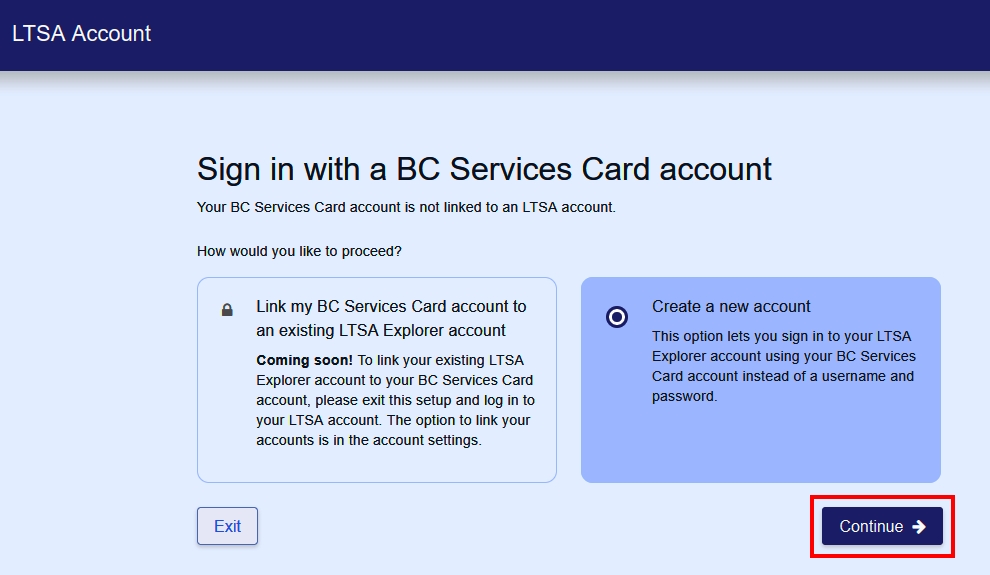
On the LTSA Account page, Create a new account is pre-selected. Click Continue.
On the Create Account page, most information is pre-populated from your personal information linked to your BC Services Card account.
Complete your information by entering your customer type and phone number. Click Create LTSA Account.
The Username of the account is based on the information generated by the BC Services Card system. The username is permanent and cannot be altered.
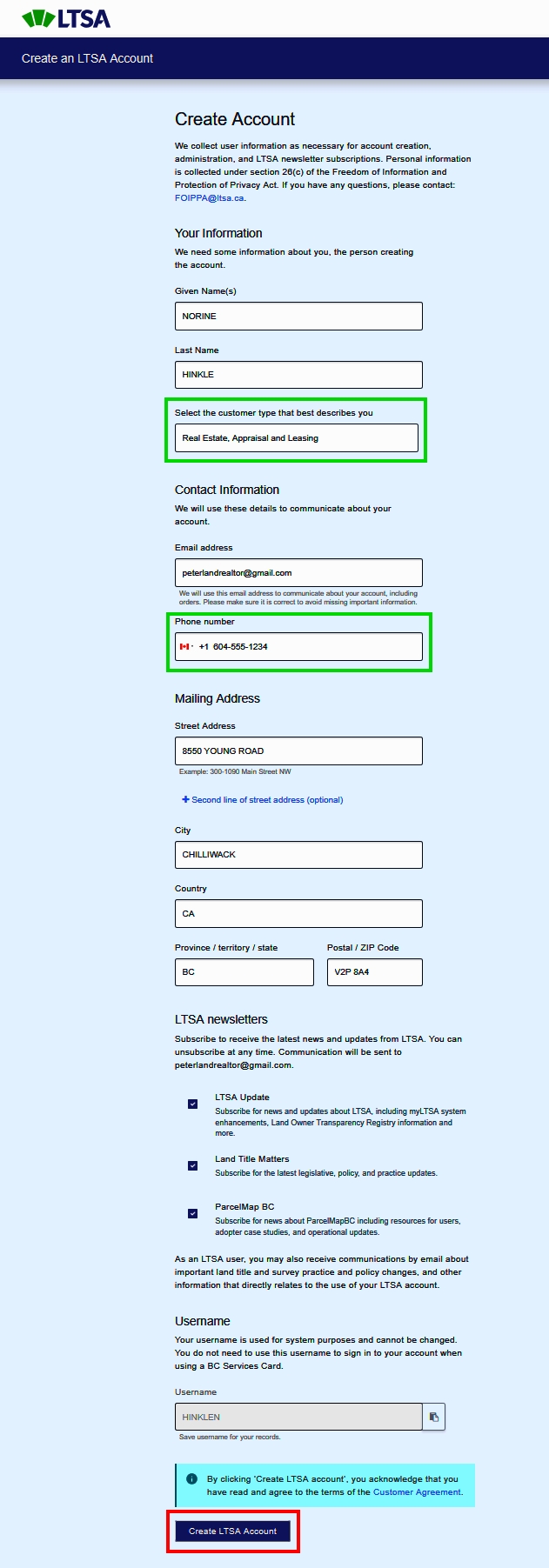
New users must agree to the terms and conditions in the Customer Agreement by clicking the checkbox before the account can be created.
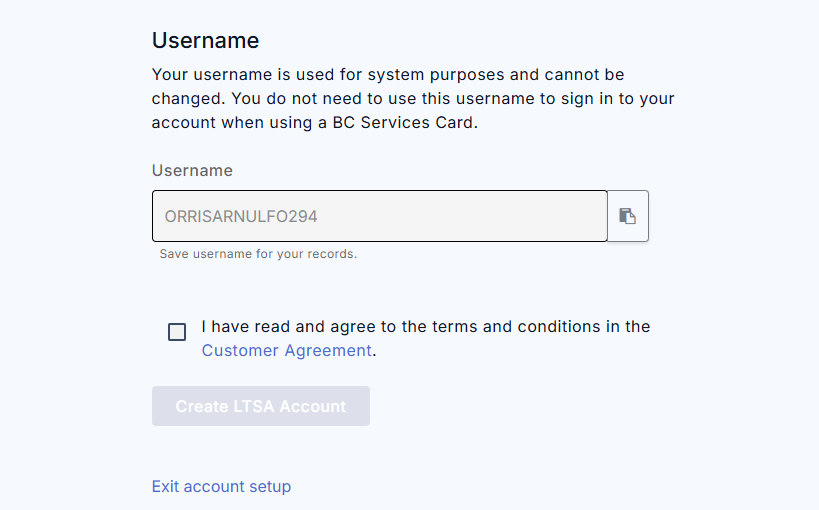
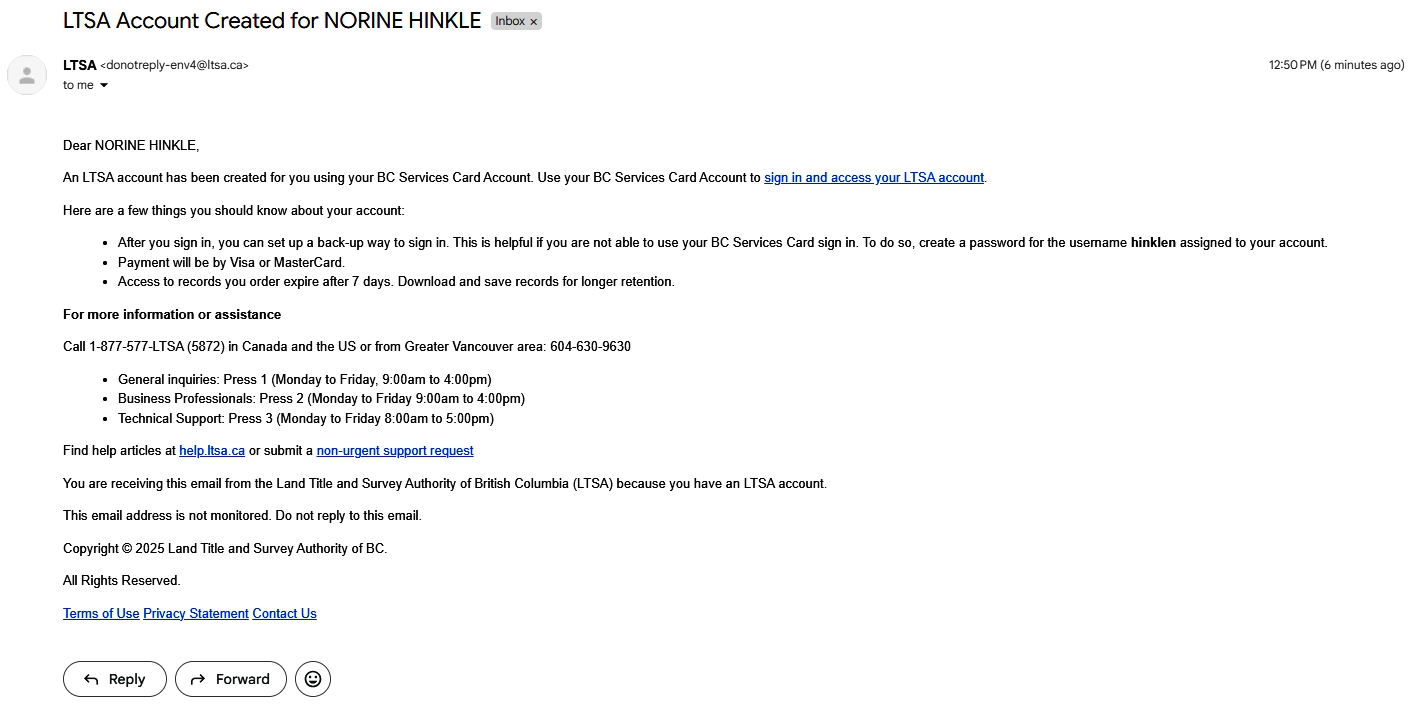
An email is sent to confirm your registration and provide details about your LTSA account.
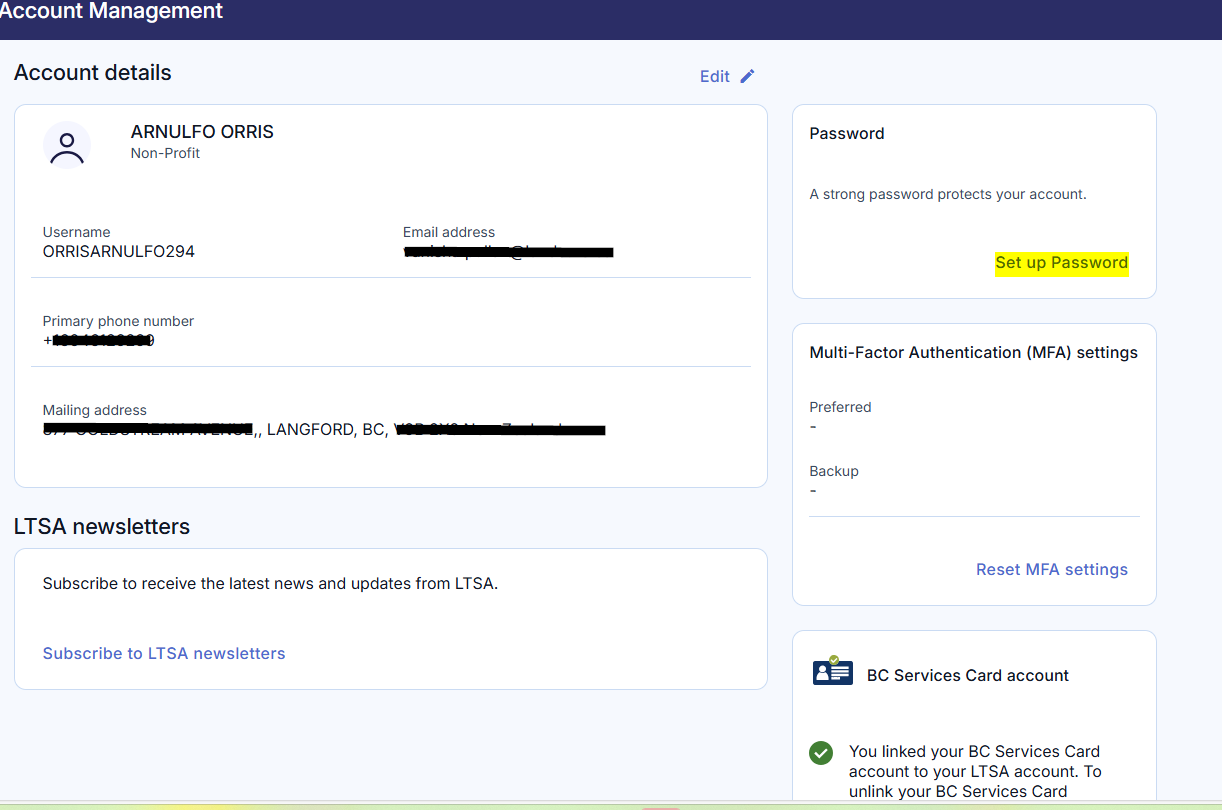
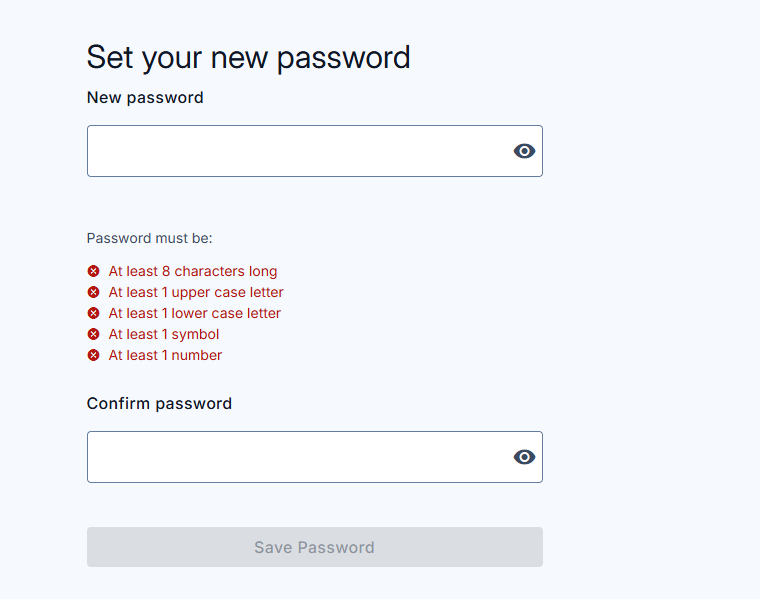
Explorer users can also set up a password for their accounts that they have used BCSC to sign up with
Set up new password
Success message
Users can find their username for their account on this page

Set up Multi-Factor Authentication (MFA) on next time sign in using the password