
Before you can get a Property Owner credential, you must create a BC Property Connect account and connect your property.
Confirm your property connection status
Sign in to your BC Property Connect account and confirm that your property connection status is connected.
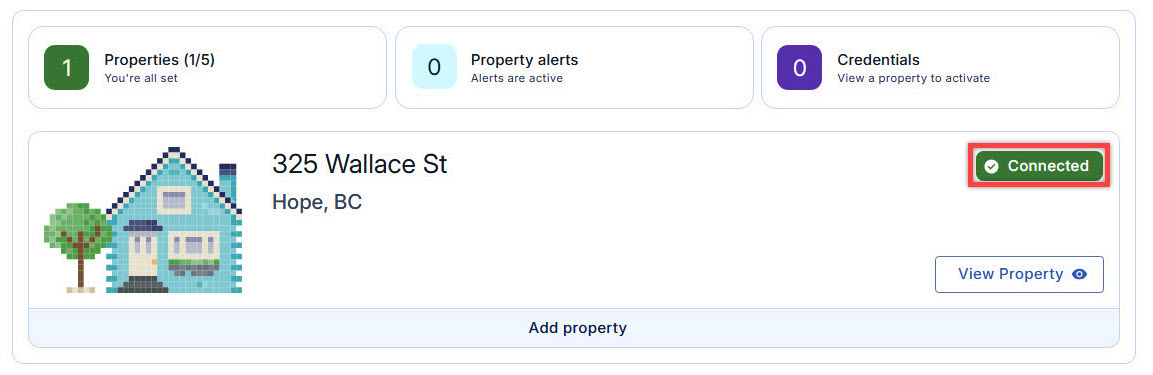
Connected status on property card If your status is Action required, you may need to update your information in your BC Services Card account or the land title records before you can continue.
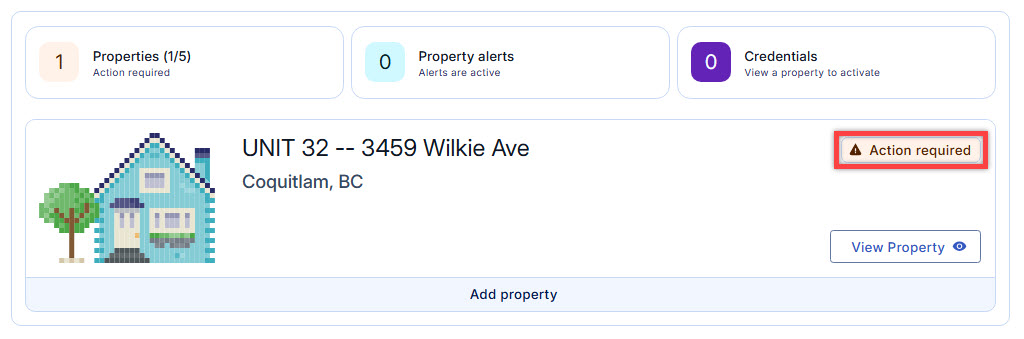
Users with an action required status are not eligible to request a Property Owner credential
Get your Property Owner credential
- Make sure your mobile devices has the latest version of the BC Services Card app installed.
Sign in to BC Property Connect. Select View Property, scroll to the Property Owner credential section, click the arrow to expand the tab and select Get Property Owner credential.
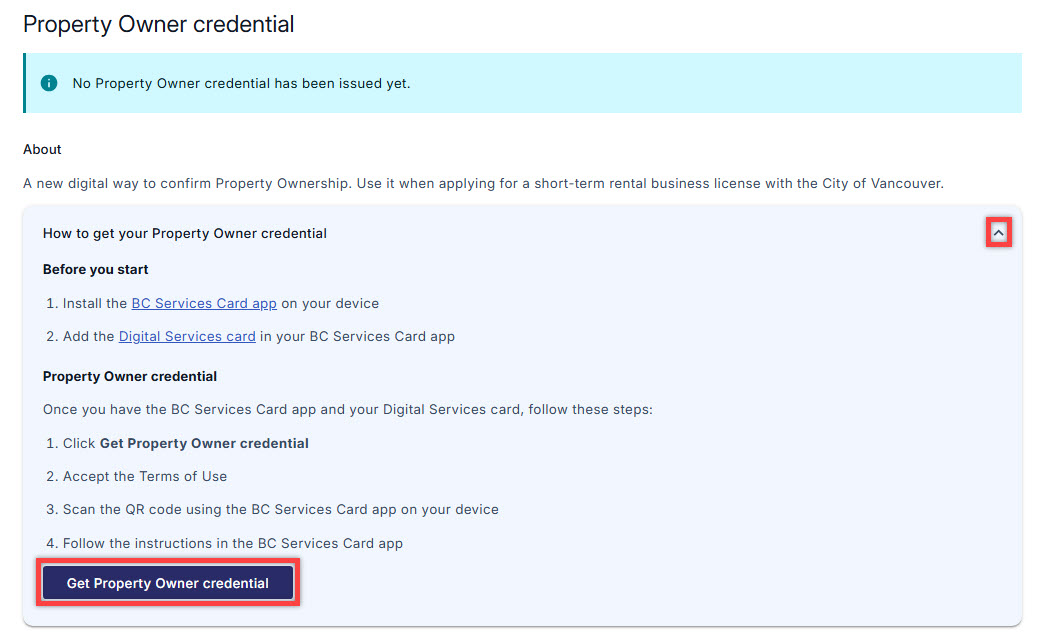
Select Get Property Owner credential Review and accept the terms. If you are accessing BC Property Connect on a desktop or laptop, a QR code will be displayed on the screen. If you are using a mobile device, click the on-screen button to share your credential from the BC Services Card app, then skip to Step 5.
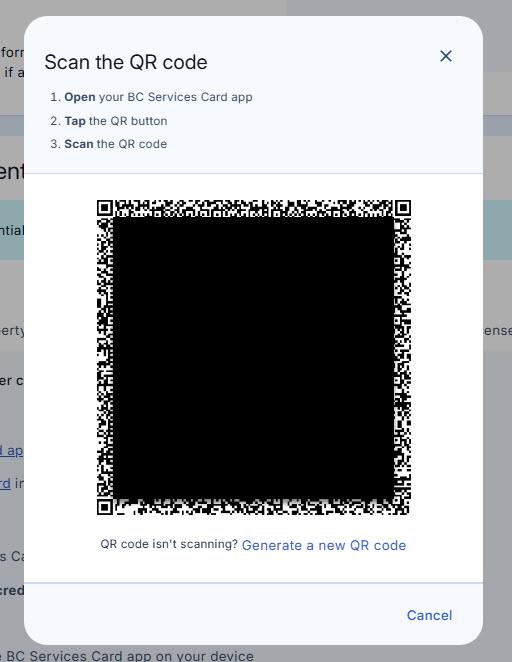
A QR code is displayed on screen Open the BC Services Card app on your mobile device. From the Wallet tab, select Scan and scan the QR code.
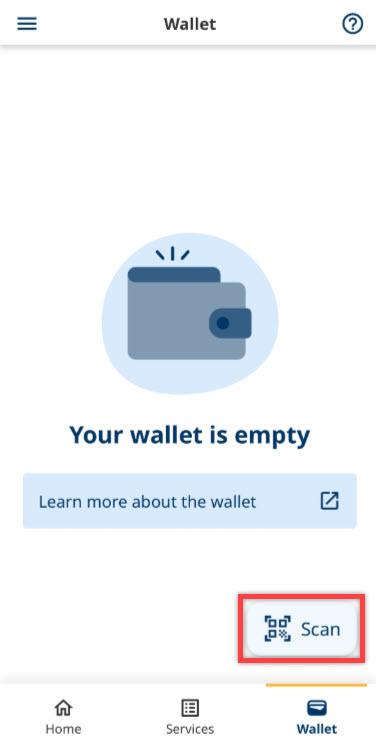
Tap the Scan icon to scan the QR code After the scan is successful, go to the Home tab to view the proof request.
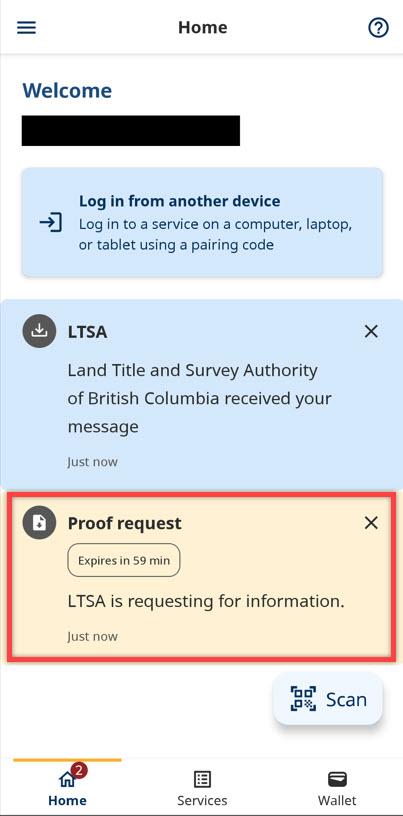
Select the proof request to view it. Review the proof request and select Share.
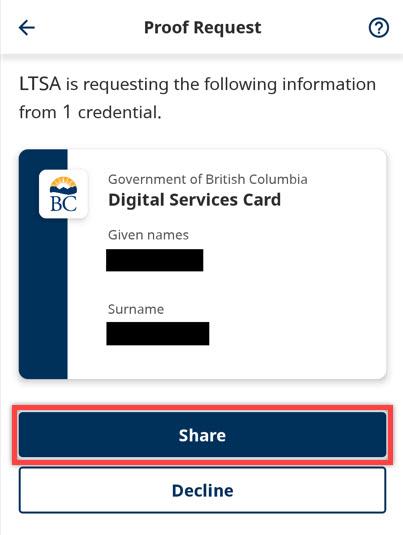
Select the Share button It should take a few seconds to process. When the message Information sent successfully appears, select Go back to home.
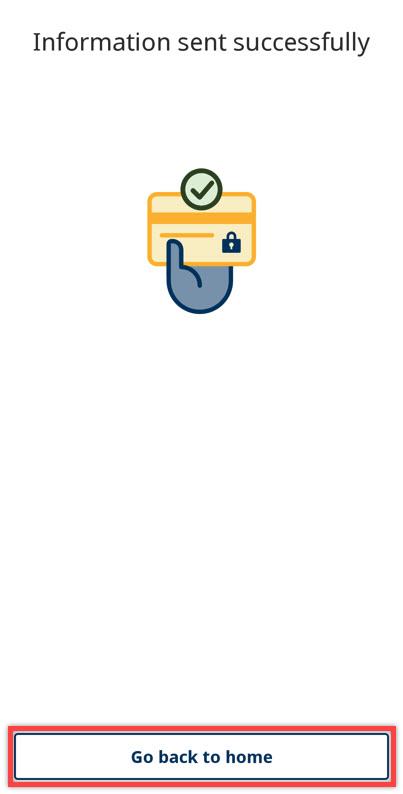
Select Go back to home From the Home tab, select the credential offer to view it.
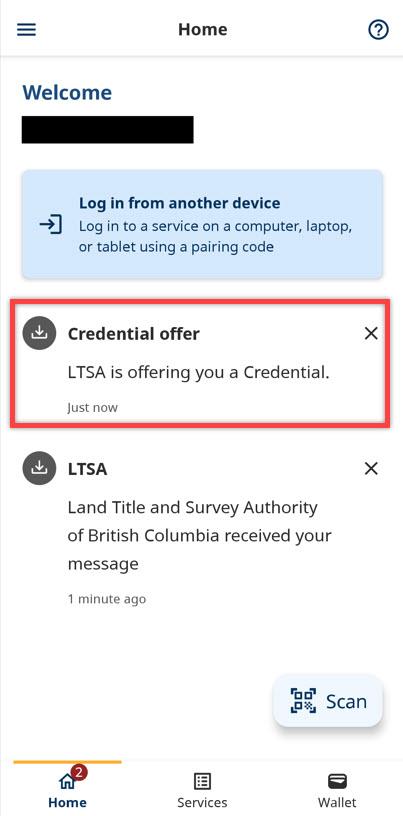
Select the credential offer Select Accept to accept the Property Owner credential issued by LTSA.
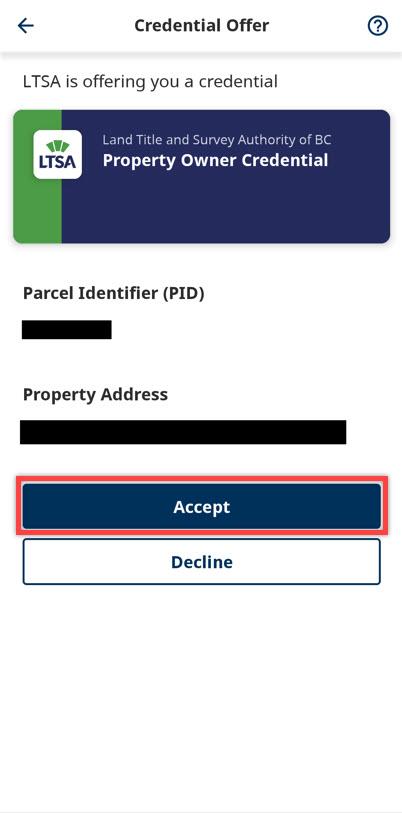
Accept the Property Owner credential issued by LTSA - It should take a 30 seconds to a minute to process. When the message Credential added to your wallet appears, select Done.
Go to Wallet tab in BC Services Card app to view your Property Owner credential.
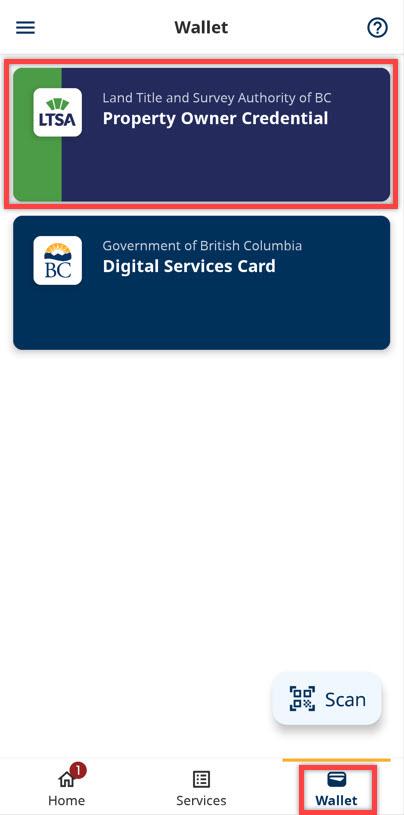
Go to the Wallet tab to view your Property Owner credential 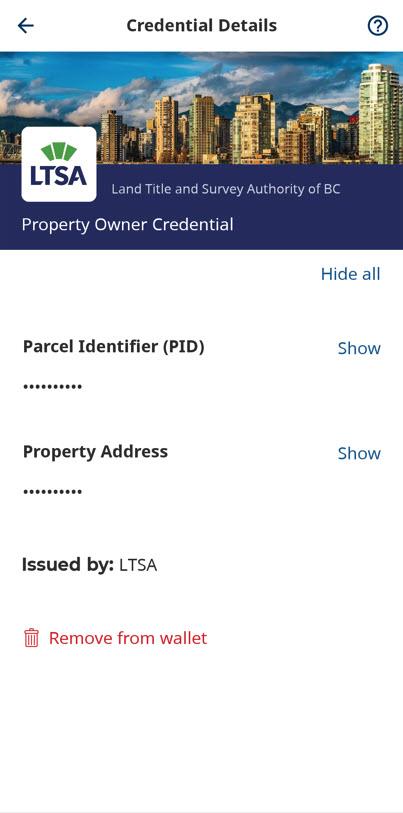
Property Owner credential issued by LTSA On a manual page refresh or during future sign-ins, the property owner credential badge will appear next to your connection status badge.
You have successfully added the Property Owner credential to your property in BC Property Connect.
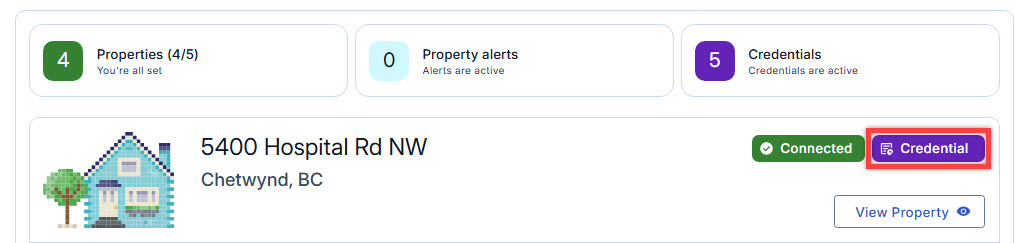
Property owner credential badge