
On This Page
Lawyer Credentials can be used to verify a lawyer’s identity and practising status when E-signing Web Filing forms. The use of Lawyer Credentials for electronic signatures on Web Filing forms is currently being piloted with a selected group of lawyers who have a Lawyer Credential issued by the Law Society of British Columbia.
Using a Lawyer Credential to E-sign a Web Filing Form
Go to the Web Filing Form section in the left navigation menu to validate the form and confirm there are no validation errors.
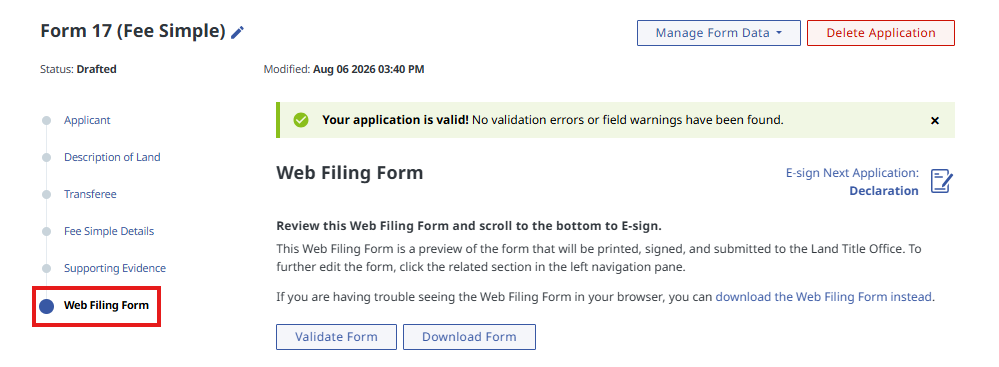
Confirm the Web Filing form has no validation error Scroll down to the E-sign section of the form and select Lawyer Credential to E-sign.
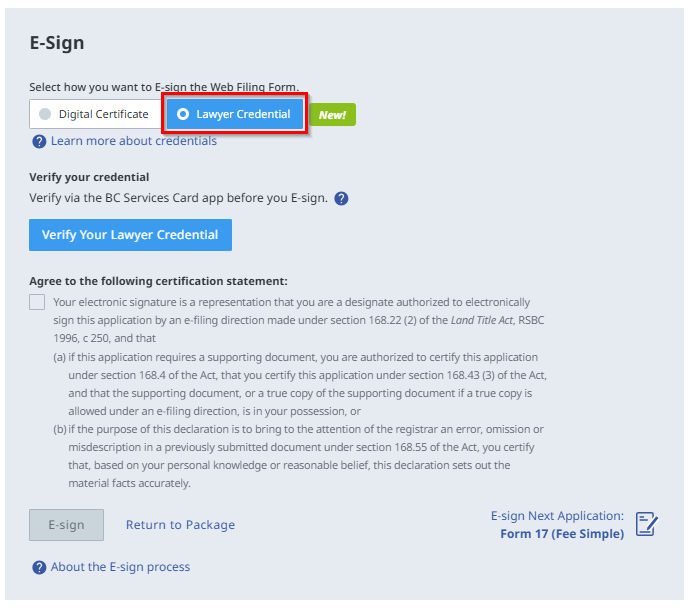
Select Lawyer Credential to e-sign the Web Filing form Select Verify Your Lawyer Credential. Select the checkbox to agree to the Terms of Use. You only need to agree to the Terms of Use once. Then select Continue.
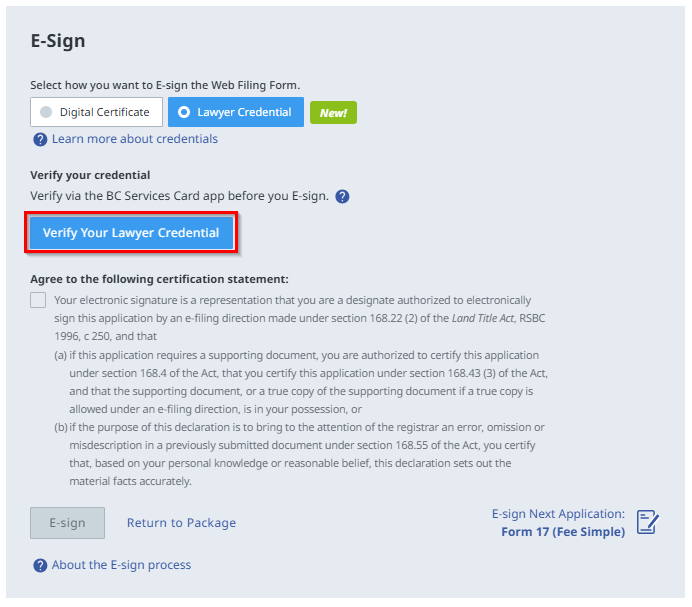
Select Verify Your Lawyer Credential A QR code appears on the screen. Open the BC Wallet app and tap Scan to scan the QR code.
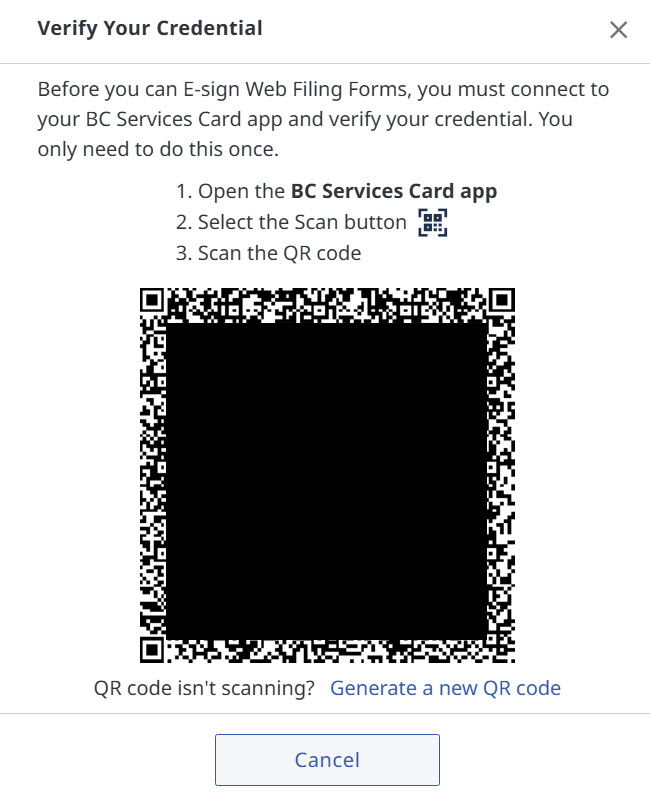
A QR code appears on screen - Select View request (first attempt) / View (subsequent attempt) to review the proof request and select Share on the app.
If the verification is successful, a green check mark appears, and a 15‑minute timer starts. During this time, you can e‑sign supported Web Filing forms without verifying your credential again for each form.
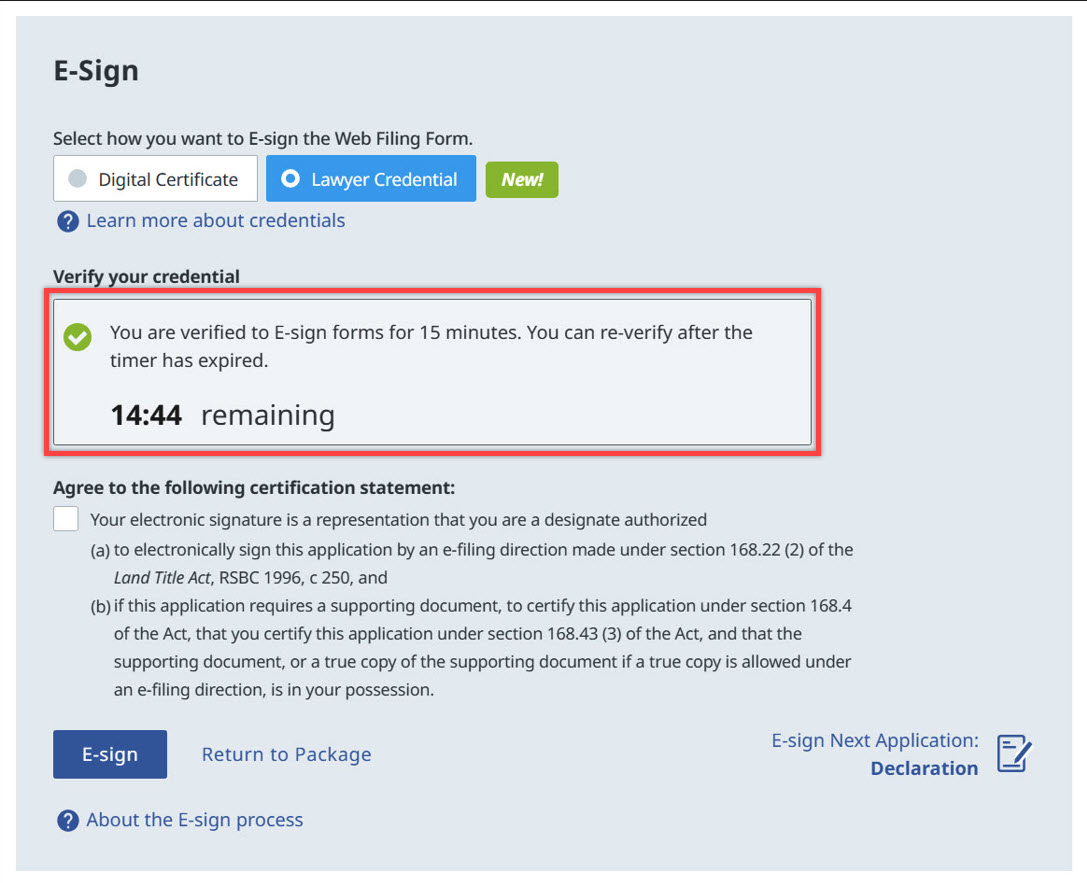
A 15‑minute timer starts. Select the checkbox to agree to the certification statement and select E-sign.
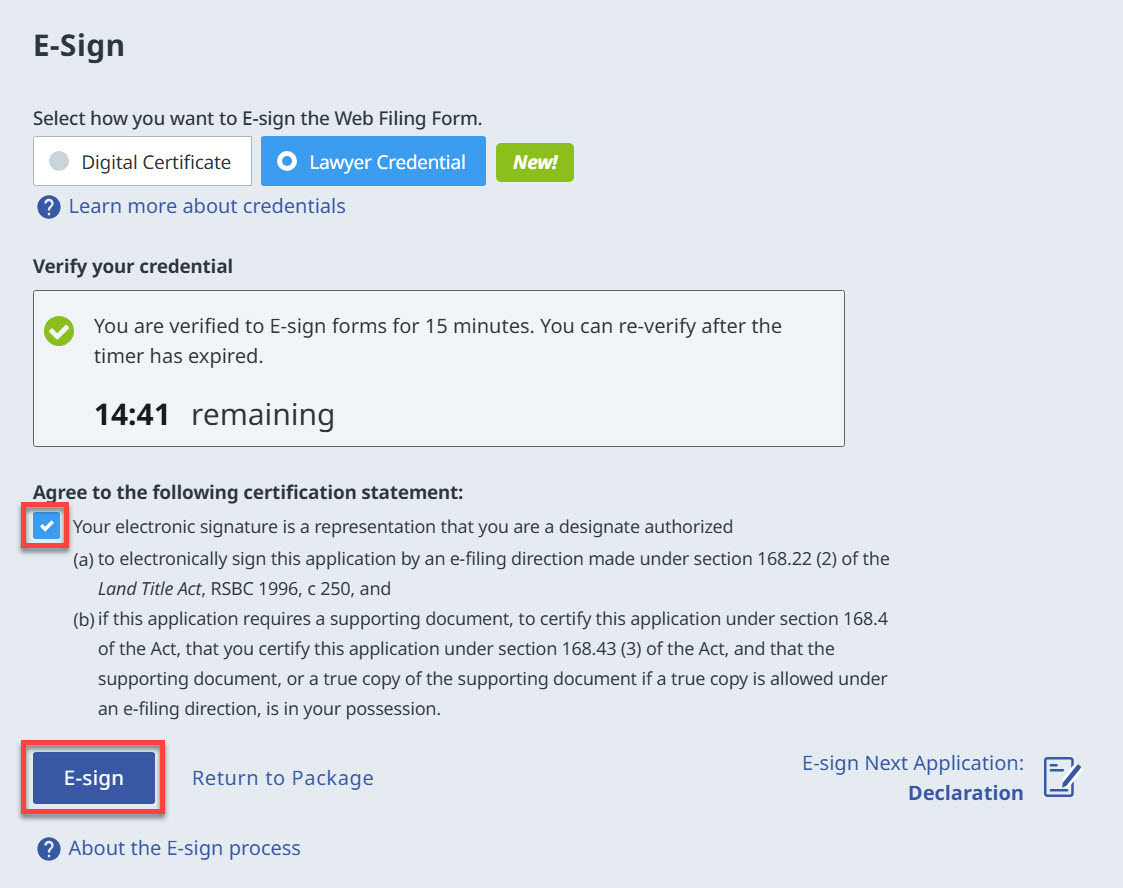
Agree to the certification statement and select E-sign. If applicable, select the E-sign Next Application link to continue to the next Web Filing form.
You can electronically sign additional forms within the allotted time without completing the verification process again. To continue, review and agree to the certification statement, then select E-sign.
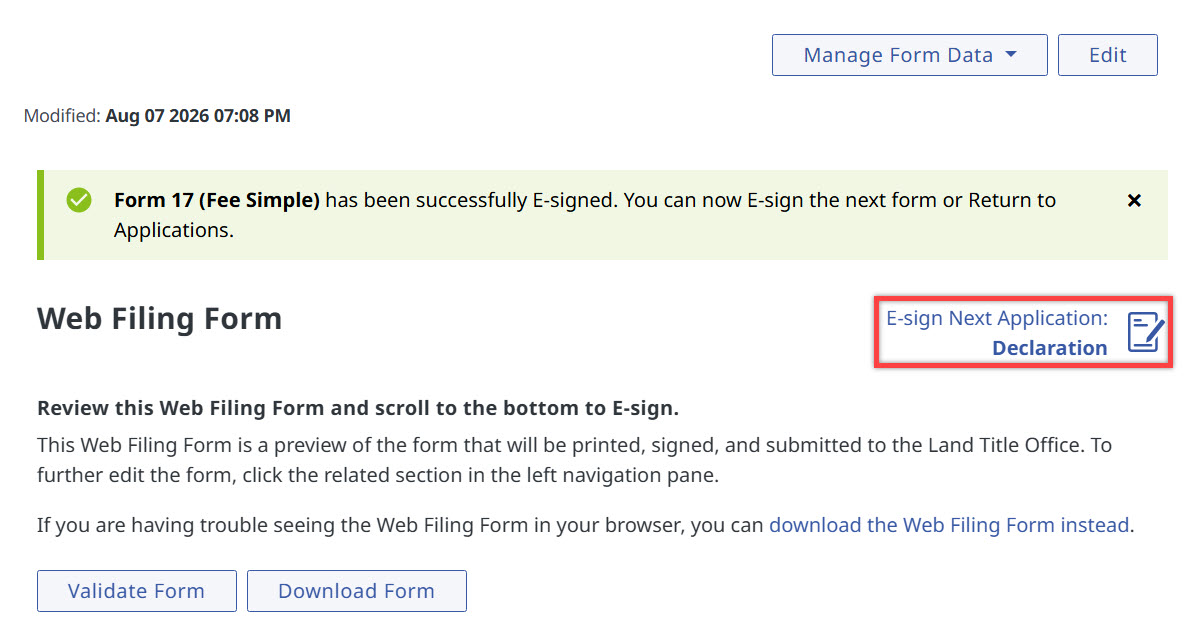
Select the E-sign Next Application link to E-sign another form. Review the Electronic Signature section of the Web Filing Form.
"LAWC" appears below the E-signed date and time to indicate that the form was electronically signed using a Lawyer Credential.
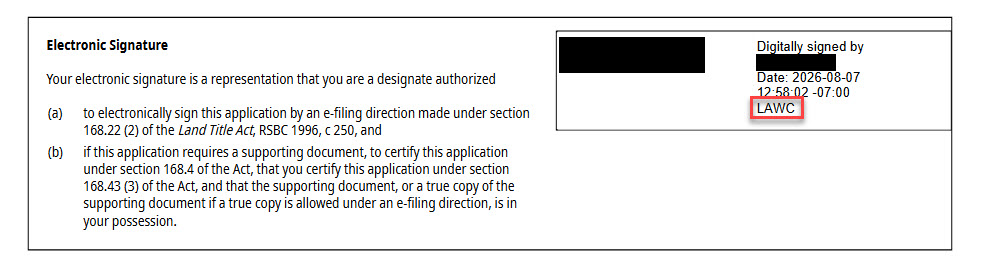
"LAWC" appears below the E-signed date and time.
If you have a new mobile device, you must verify your Lawyer Credential again on the new device. When you connect your Lawyer Credential to the new device, the connection to your previous device is removed.
Connecting to a New Mobile Device
Select Set up a new connection if you have a new mobile device to connect.
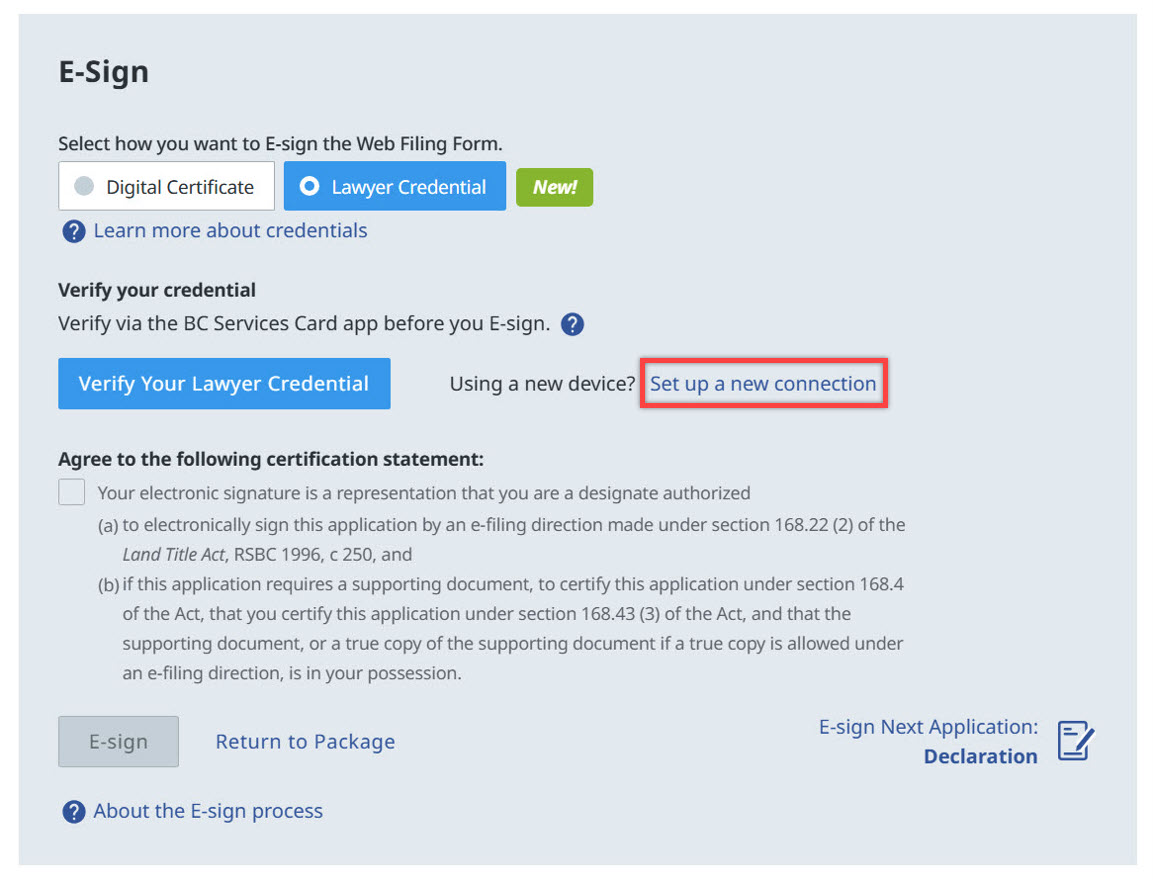
Select Set up a new connection. - Follow step 4 and 5 from the previous section to verify your Lawyer Credential and E-sign your Web Filing Forms.